TLDR;
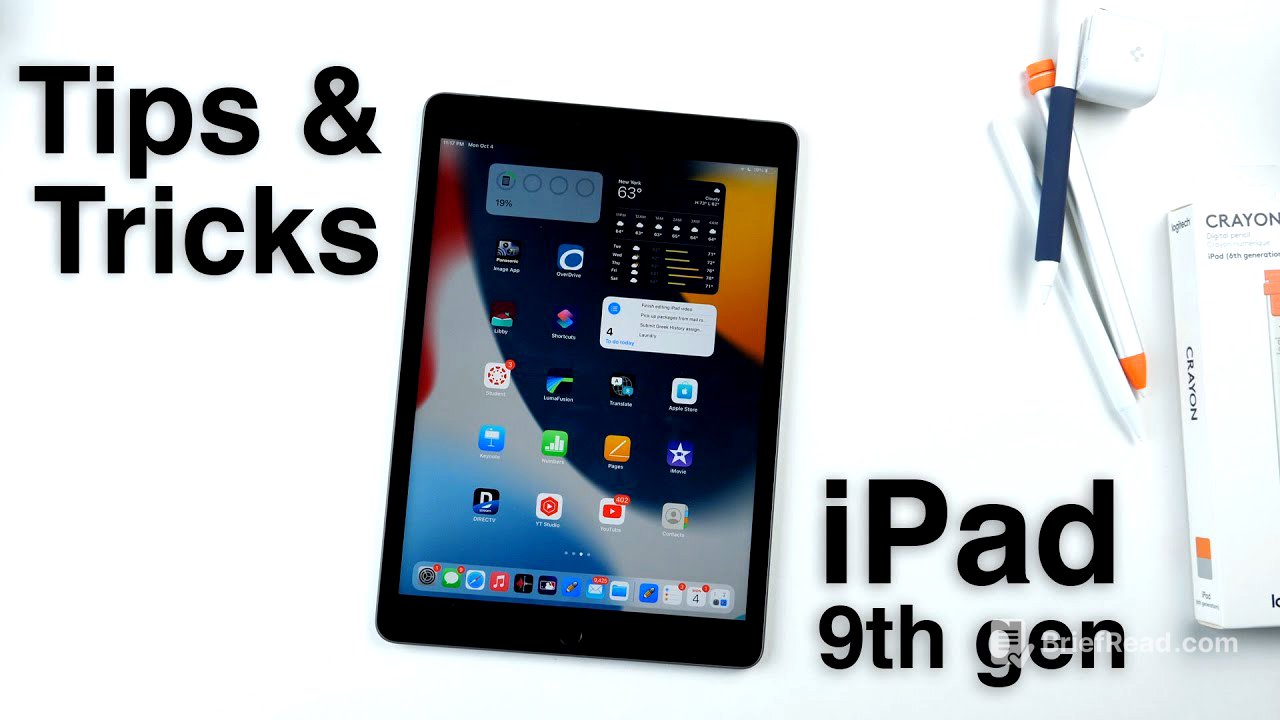
This video provides a comprehensive overview of the 9th generation iPad, covering everything from unboxing and basic operation to advanced tips, tricks, and accessory recommendations. It includes essential iPad OS 15 features, accessory options, and troubleshooting software.
- Unboxing and device overview
- Basic software navigation and gestures
- Accessory recommendations (keyboards, styluses, adapters)
- Software tips and tricks for iPad OS 15
Unboxing/Device Tour [0:00]
The video begins with an unboxing of the iPad 9th generation, specifically the 256GB cellular model. The box includes the iPad, a Lightning to USB-C cable, and a 20-watt USB-C wall charger. The iPad features a black front with options for a silver or black back. The cellular model includes a cellular antenna. The device has a power button, headphone jack, volume buttons, and a Smart Connector. The front includes a home button with Touch ID.
How to Use Software [1:45]
The presenter explains how to navigate the iPad using both the home button and multi-touch gestures. Users can swipe up to go home, swipe up and hold for multitasking, or use four-finger gestures to close apps, access recent applications, and switch between apps. Taking a screenshot involves pressing the home and power buttons simultaneously. Control Center is accessed by swiping down from the top right, while Notification Center is accessed by swiping down from the top.
Must Have Accessories [3:50]
The presenter reviews several accessories for the iPad. Apple's Keyboard Folio is praised for its slim design and microfiber interior, though the typing experience is noted to be somewhat mushy. Alternative keyboard options include the Logitech Keys-To-Go, a portable Bluetooth keyboard, and Logitech's full keyboard case with a trackpad and Apple Pencil slot. Stylus options include the Apple Pencil (1st generation), Logitech Crayon, and a cheaper stylus from Novel. A magnetic sleeve for the Apple Pencil is also highlighted for its grip and secure attachment. The video also mentions the need for a Lightning adapter to use accessories like SD card readers or HDMI ports, as the iPad does not have USB-C. Finally, the presenter suggests third-party 20-30 watt chargers as more compact and faster alternatives to Apple's included charger.
iMobie AnyFix [8:25]
The video introduces iMobie AnyFix, a software solution for troubleshooting common iPad and iPhone issues such as being stuck on the Apple logo, recovery mode, or boot loops. AnyFix can also downgrade iOS versions and fix over 130 system issues with multiple repair modes.
Tips/Tricks [9:10]
The presenter shares several tips and tricks for using the iPad. Quick Notes can be accessed by swiping from the corner of the screen, allowing users to create and attach notes to web pages. Font size can be customized on a per-app basis via the Control Center. Multitasking is made easier with new controls at the top of the screen, allowing users to quickly enter split screen or slide over modes. Focus mode allows users to customize home pages, hide badges, and filter notifications for better concentration. The "Speak Screen" accessibility feature reads the screen content aloud when swiped down with two fingers. Other accessibility features include reduced white point and color filters. Safari features include customizable wallpapers, reader mode, and tab grouping. Center Stage uses the front camera to follow the user during video calls, and the wide-angle front camera allows more to be captured in the frame.



![STOCK Market Hits ALARMING $1 Trillion Margin Debt [What's Next?]](https://wm-img.halpindev.com/p-briefread_c-10_b-10/urlb/aHR0cDovL2ltZy55b3V0dWJlLmNvbS92aS8wRDBpUk0wdnVjNC9ocWRlZmF1bHQuanBn.jpg)