TLDR;
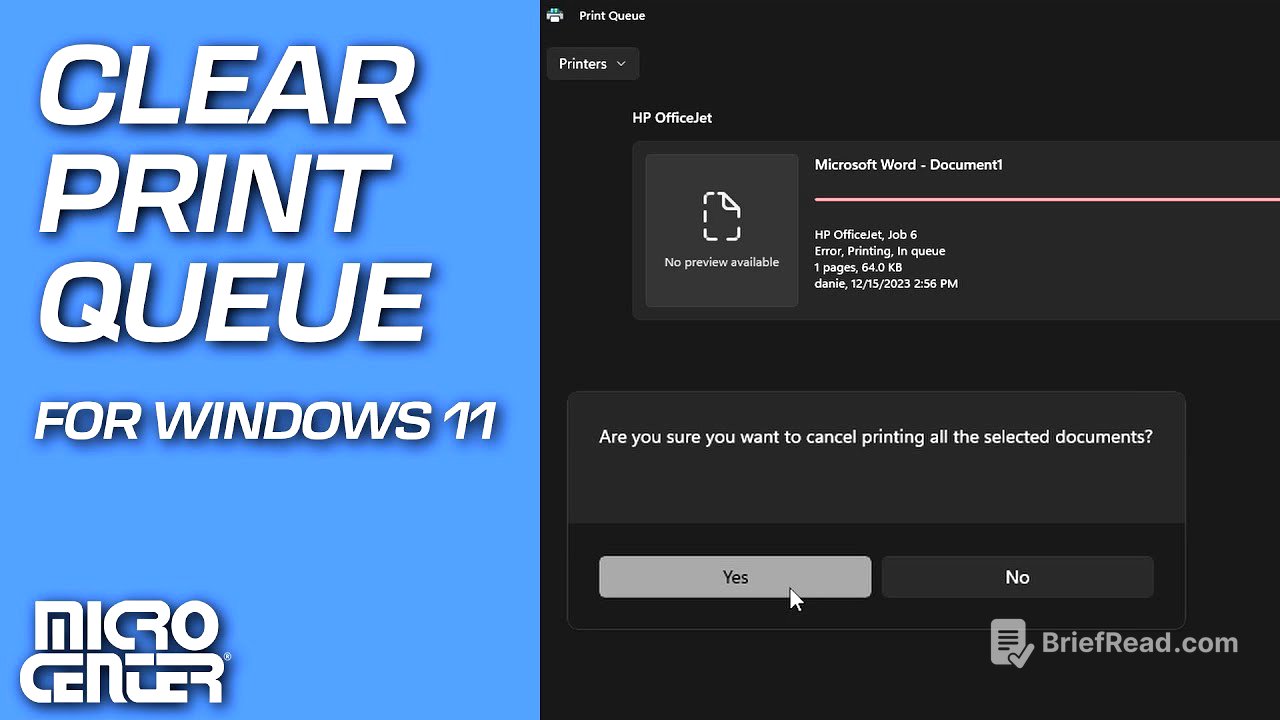
This video provides a quick tutorial on how to clear the print queue in Windows 11. The key steps include accessing the Printers & Scanners settings, selecting the relevant printer, opening the print queue, and canceling all documents.
- Accessing Printers & Scanners settings
- Opening the print queue
- Canceling all documents
Accessing Printers & Scanners [0:01]
To begin, click on the Start button or the Windows icon, typically located on the taskbar. Type "printers and scanners" into the search bar. From the search results, select and open "Printers & Scanners" to access the printer settings.
Selecting the Printer [0:13]
In the Printers & Scanners settings, find the specific printer you are using from the list of available printers. Identify the correct printer by its name and model. Click on the arrow to the right of the printer's name to access its settings screen.
Opening and Clearing the Print Queue [0:27]
In the printer settings screen, click on "Open print queue" to view the documents currently waiting to be printed. To clear the queue, click on the three dots located at the top right of the window and select "Cancel all". Confirm the action by clicking "Yes" on the confirmation window. Once the queue is cleared, it will display "No printer jobs in queue," and you can attempt to print again.