TLDR;
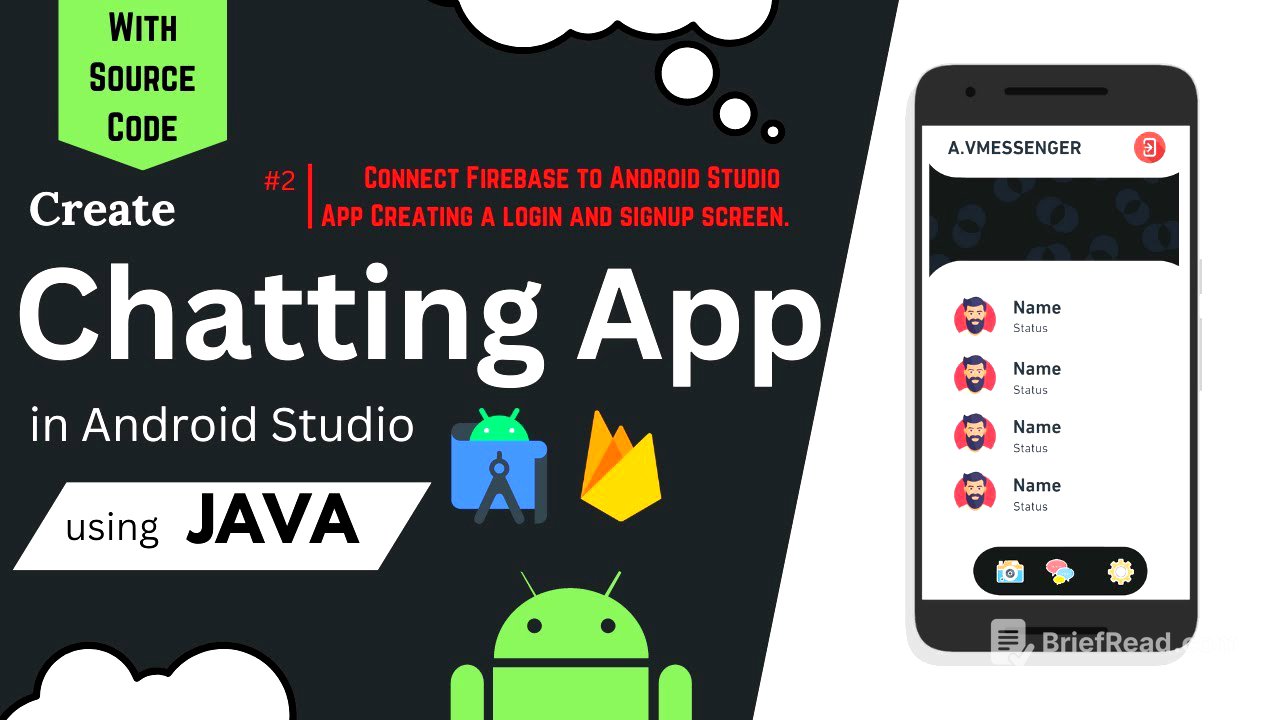
This video tutorial focuses on developing an Android project, detailing how to connect the project to a Firebase database and design both a logo screen and a sign-up screen. It walks through the process of linking the Android app to Firebase, adding necessary dependencies, and designing the user interface for the logo and registration screens, including setting up text fields, buttons, and image elements.
- Connect Android project to Firebase database.
- Design logo and sign-up screens.
- Add dependencies for Firebase and circular images.
Connecting to Firebase and Adding Dependencies [0:00]
The initial step involves connecting the Android Studio project to Firebase. This is done through the Tools menu, selecting Firebase, and then choosing Realtime Database. The process includes creating a new project in Firebase, naming it, and then connecting it to the Android app. After connecting, the video details adding dependencies for Realtime Database and Cloud Storage by accepting the prompts in Android Studio, which automatically updates the Gradle build files.
Designing the Logo Screen [4:26]
The tutorial transitions to designing the logo screen. The video guides viewers through setting the background, adding an icon using the Image View, and including text elements such as the app name ("People") and a "Sign up to continue" message. The presenter adjusts text colors, sizes, and font families to refine the screen's appearance.
Creating the Sign-Up Screen [25:15]
The video explains how to create a registration screen by first creating a new activity named "Registration." The design is based on the logo screen, with modifications to include fields for username, email, and password. The presenter adds a circular image for the user profile and adjusts the layout to accommodate these new elements. This involves adding a dependency for circular images and making sure the UI elements align correctly.
Finalizing the UI and Testing on a Device [36:45]
The final part of the video focuses on testing the designed screens on an actual Android device. The presenter modifies the splash screen to redirect to either the login or registration screen for testing purposes. Adjustments are made to fix overlapping text and ensure that all UI elements are correctly positioned and functional on the device.