TLDR;
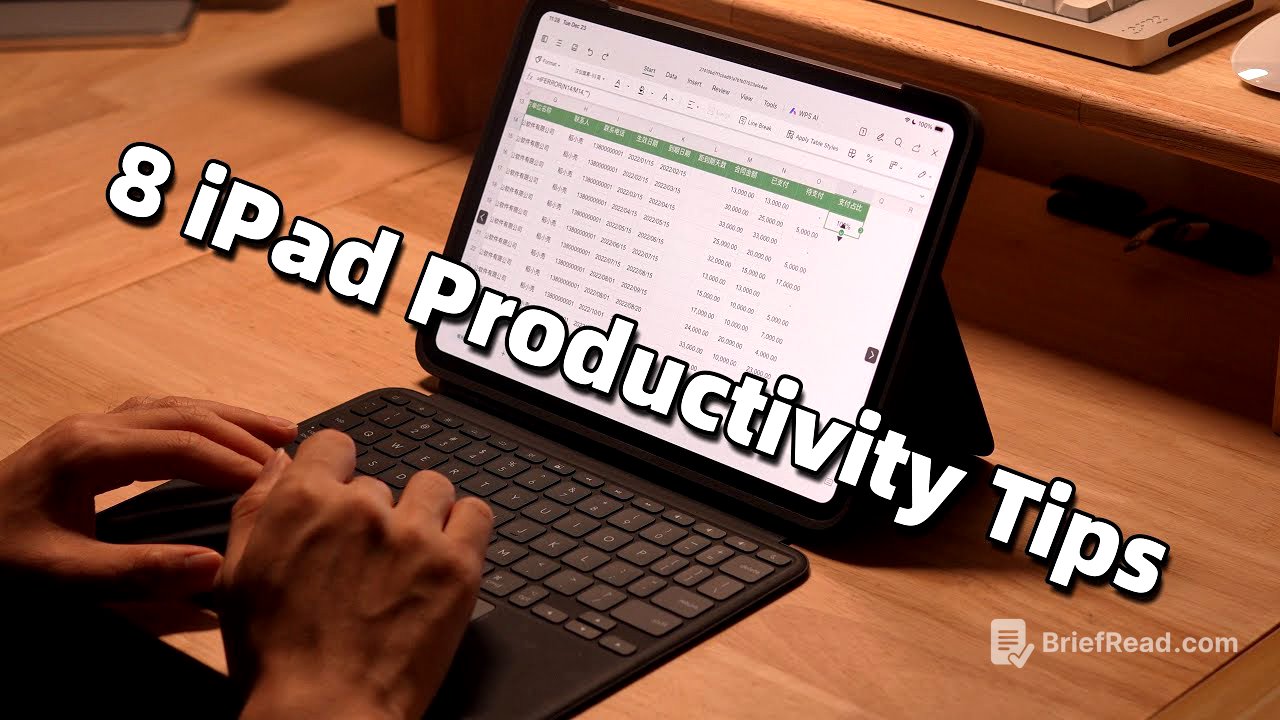
This video provides eight essential productivity tips for iPad users, covering gestures, keyboard shortcuts, Apple Pencil features, multitasking, integration with Mac and iPhone, USB-C port functionalities, and must-have apps. By mastering these tips, users can transform their iPads into powerful tools for learning, work, and creative tasks.
- Master essential iPad gestures for efficient navigation and multitasking.
- Utilize virtual keyboard shortcuts to speed up typing and access symbols quickly.
- Maximize the Apple Pencil's potential for note-taking, drawing, and screen capture.
- Leverage split screen and multitasking features to handle multiple tasks simultaneously.
- Integrate your iPad seamlessly with your Mac and iPhone for enhanced productivity.
- Explore the versatility of the USB-C port for connecting to external displays, storage, and faster internet.
- Discover must-have apps like GoodNotes, MarginNote, Procreate, Final Cut Pro, and Affinity Photo to boost productivity.
Intro [0:00]
The video introduces eight essential and practical productivity tips for iPad users, aimed at transforming the device into a powerful tool for paperless learning and efficient work. It emphasizes that knowing how to use the iPad's productivity features is key to maximizing its potential.
iPad Gesture Tips [0:30]
The video shares several iPad gesture tips. Users can long press one app icon and tap others to batch move them across home screens. Similarly, long pressing one photo allows for batch selection and movement to other apps. Swiping left or right with four fingers enables quick app switching. Long pressing an empty space on the home screen allows sorting or hiding home screens.
Virtual Keyboard Tips [1:15]
The video shares virtual keyboard tips. Long pressing the shift key locks it in uppercase, reverting to lowercase upon release. Long pressing a number key allows quick input of numbers and symbols, with continued swiping granting access to more symbols. Long pressing the space bar and tapping the virtual keyboard enables dragging to select text. Pinching with two fingers switches to a smaller keyboard mode, while spreading them returns to the full keyboard mode.
Apple Pencil Tips [2:04]
The video shares Apple Pencil tips. Users can write directly in any search box, with automatic conversion to text. A vertical line drawn between combined words adds a space, while redrawing removes it. The smudge function quickly erases content. Double tapping the pencil body switches to the eraser, or gently squeezing brings up shortcut tools. Swiping from the lower right corner opens QuickNotes for simultaneous information viewing and note-taking, while swiping from the lower left corner takes a screenshot, with the option to save a long screenshot of an entire webpage in browsers. Shortcut actions and handwriting features can be customized in settings.
Split Screen & Multitasking [3:03]
The video shares split screen tips. In apps like GoodNotes, users can long press and drag another app to the side of the screen to split it, adjusting the size by dragging the dividing line. A third app can be dragged from the dock to create a floating window. Opening a video and enabling picture-in-picture mode allows handling a fourth task simultaneously.
iPad & Mac Integration [3:42]
The video shares iPad and Mac integration tips. Images or documents on a Mac can be signed on an iPad using Apple Pencil via the markup feature. Enabling pointer and keyboard movement between devices in Mac display settings and enabling cursor and keyboard under AirPlay and continuity on the iPad allows sharing the mouse and keyboard. Screen mirroring extends the Mac display to the iPad as a secondary screen.
iPad & iPhone Integration [4:35]
The video shares iPad and iPhone integration tips. A photo pinched with three fingers on an iPhone can be pasted into the iPad's notes app with a three-finger spread. Text copied on the iPhone can also be pasted directly into the iPad. Enabling control nearby devices in iPhone accessibility settings allows remotely controlling the iPad. Enabling iPad calls on other devices in iPhone settings allows answering calls on the iPad. The iPad can also serve as a portable charger for the iPhone.
USB-C / Type-C Port Tips [5:21]
The video shares USB-C port tips. Connecting the iPad to a monitor with a full-function USB-C cable turns it into an extended display. Connecting an external hard drive via the USB-C port allows storing large files. Connecting a doc enables inserting memory cards for expanded storage and connecting to Ethernet for faster internet.
Must-Have iPad Apps [6:05]
The video shares must-have iPad apps to boost productivity. GoodNotes offers a handwriting note-taking experience with various brushes and colors, along with shape and line drawing tools. MarginNote helps break down textbooks or documents into mind maps. Procreate provides powerful brushes, colors, and layer functionality for creating artwork. Final Cut Pro allows for computer-like video editing with multimedia and multitrack windows. Affinity Photo is a powerful editing app with smooth, precise edits using Apple Pencil.
Final Thought [7:35]
The video concludes by summarizing the eight essential iPad productivity tips, emphasizing that learning these tips will enhance work and study efficiency. The presenter encourages viewers to subscribe for more in-depth videos on these topics and provides links to featured accessories in the description.