TLDR;
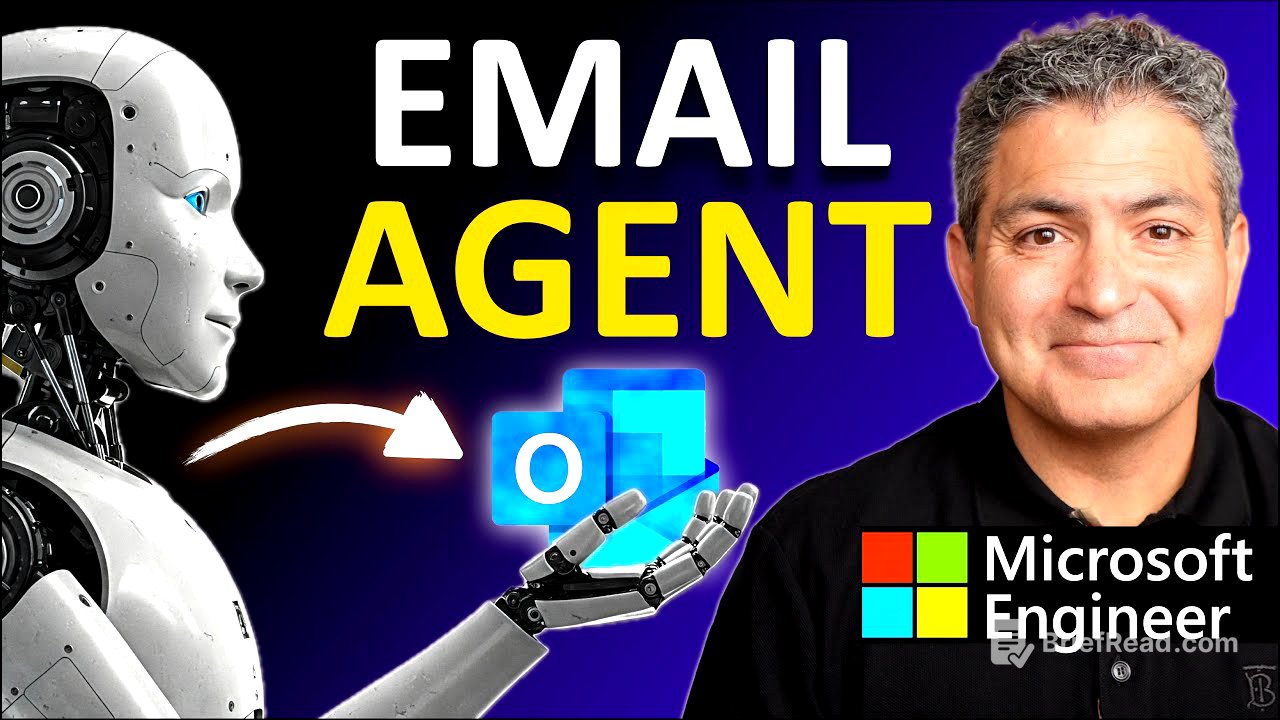
This video provides a comprehensive guide on building an autonomous AI agent using Microsoft Copilot Studio. The AI agent, named Inbot, automates the process of monitoring Outlook inboxes and responding to emails. The video covers everything from demonstrating its capabilities to step-by-step instructions on how to create, configure, and test the agent effectively.
- Introduction to Inbot and its capabilities
- Step-by-step guide on creating the agent
- Tips on troubleshooting and fine-tuning
Intro [0:00]
The video starts with an introduction to Inbot, an autonomous AI agent designed to monitor Outlook inboxes and automatically respond to queries. The host emphasizes that building this agent requires no coding and can save significant time in handling emails.
Demo of the Autonomous AI Agent [0:55]
A demonstration showcases Inbot's functionality, highlighting how it can respond to various emails by using specified knowledge sources. The agent can be customized to adapt to specific preferences regarding tone and response format. Viewers are informed that the ease of building the agent allows them to learn about autonomous AI while personalizing it.
Requirements to Build the Autonomous AI Agent [2:41]
To build Inbot, users need access to Microsoft Copilot Studio, preferably through a work or education account. The host provides methods to obtain a free trial for those without immediate access. Understanding the requirements is crucial for proceeding with the build.
Building the Autonomous AI Agent [4:06]
The process of creating Inbot in Copilot Studio involves logging in and selecting templates or starting from scratch. Users must name the agent and provide detailed instructions on how it should respond to incoming emails based on knowledge sources. The emphasis is on customizing settings to ensure it meets specific needs.
Adding Knowledge Source to the Agent [9:20]
In this chapter, the focus is on selecting and adding various knowledge sources, including public websites and SharePoint sites, to the agent. The host demonstrates how to input specific resources that Inbot will reference for accurate information related to potential email queries.
Adding the Action for the Agent [14:52]
The next step involves defining actions that the agent will perform, specifically sending emails as replies. The host shows how to set up the necessary connectivity and permissions for the Office 365 Outlook send email action. Users are made aware of potential connectivity issues.
Adding the Trigger for the Agent [16:06]
Here, the setup of triggers that initiate the agent upon receiving new emails is explained. Users learn how to create specific triggers for incoming emails to ensure Inbot activates under the desired circumstances, enhancing its functionality.
Fixing Gotcha #1 [17:27]
The host addresses a common issue where actions may appear unconnected during testing. A step-by-step resolution guide is provided, detailing how to manage connections and ensure the agent operates smoothly during tests.
Publishing the Agent [18:08]
After completing the setup, users learn the importance of publishing the agent to finalize its build. The host shares cautionary notes regarding sharing published agents, particularly concerning security credentials.
Creating an Outlook Rule (to avoid a loop) [18:57]
The tutorial describes how to create an Outlook rule to prevent response loops when Inbot replies to emails. This step ensures that emails handled by Inbot do not cause it to respond to its own replies, mitigating potential conflicts.
First Time Running the Agent (and fixing a common issue) [20:05]
In the first run of the agent, a test email is sent with multiple queries to observe how Inbot initializes its responses. The host describes the results, highlighting the functioning of the knowledge sources and addressing an issue encountered during the test.
Second Time Running Agent (Success!) [24:49]
The second run of Inbot demonstrates successful execution after fixing prior issues. The host provides details of the responses Inbot generated, showcasing its ability to retrieve and relay accurate information from its sources.
Further Testing the Agent [27:22]
The video emphasizes the importance of continuous testing to ensure the agent works properly. Viewers are encouraged to experiment with the triggers and responses to enhance Inbot's performance and tailor it to personal preferences.
Fine Tuning the Agent [28:21]
In this section, the video discusses several methods to fine-tune Inbot, including limiting triggers to specific senders and adjusting knowledge access settings. Emphasis is placed on saving and publishing changes made during this fine-tuning process.
Experimenting with Deep Reasoning [29:37]
The final segment introduces deep reasoning capabilities in the AI agent as a preview feature. The host explains how to enable deep reasoning and modify instructions to utilize this advanced functionality effectively, encouraging experimentation with different configurations to optimize performance.