TLDR;
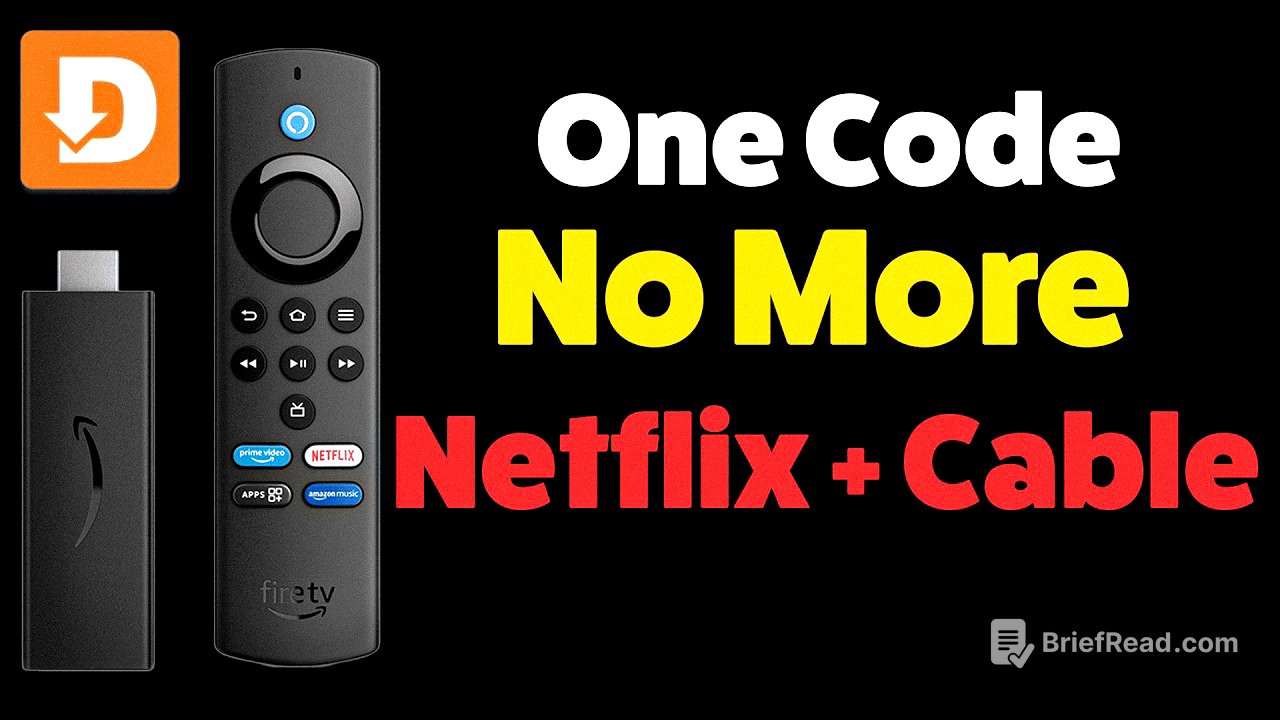
This video demonstrates how to significantly enhance the functionality of your Fire Stick or Android TV using a simple downloader code. By following the steps outlined, viewers will install a fully loaded app store with categorized selections, such as movies, TV shows, sports, and more. The presenter explains the necessary steps to prepare your device, install the downloader app, and access applications that extend the usage of the streaming device. Additionally, the video highlights the importance of connecting to a VPN for secure browsing.
- The video shows how to unlock new capabilities for your Fire Stick or Android TV.
- Viewers are guided through the installation process of the downloader app and setting necessary permissions.
- Recommendations for top apps to use are provided, alongside essential security tips like using a VPN.
Getting Started with Your Fire Stick [0:00]
The video begins with an introduction to the benefits of utilizing a downloader code to unlock a full app store on Fire Stick or Android TV devices. The presenter emphasizes that most users are unaware of their devices' capabilities beyond basic streaming. Following this introduction, viewers will be guided on how to install the downloader app, which is crucial for subsequent steps. Important reminders about being cautious with the installation process are included, urging users to pay attention to details.
Installing the Downloader App [1:55]
Next, users are shown how to locate and install the downloader app on their Fire Stick. Upon reaching the home screen, users are instructed to search for the app by typing the letter 'D' and selecting the downloader app's white and orange icon. Viewers learn that this process typically takes 30 seconds to a minute depending on internet speed, transforming their device into a gateway for further installations.
Changing Fire Stick Settings [3:17]
After installing the downloader app, the video explains how to access and change settings on the Fire Stick to allow for the installation of apps from unknown sources. Users are guided through accessing the Fire Stick settings menu, navigating to developer options, and enabling ADB debugging and installation from unknown apps. This step is vital to ensure that the downloader can install additional applications.
Entering the Downloader Code [7:31]
Following the settings adjustments, viewers are instructed to open the downloader app and enter the provided code: 7546071. This code leads to a specific page where users can download a file. The need to pay attention to the exact numbers is stressed, as even a small mistake can cause the installation to fail. Once the correct code is entered, users will begin downloading the desired app.
Connecting to NordVPN [11:13]
Prior to launching the newly installed app, the importance of connecting to NordVPN is introduced. The presenter explains that NordVPN hides the user's public IP address, providing increased privacy when using third-party apps. Instructions for downloading NordVPN on the Fire Stick are provided, and viewers are encouraged to take advantage of a discounted offer available through provided links.
Configuring Permissions for Installed Apps [13:42]
Once NordVPN is set up, viewers return to settings to grant necessary permissions for the recently installed Unlin app, similar to the process done for the downloader app. This ensures the new app has the ability to operate as intended. The presenter emphasizes verifying both apps (Downloader and Unlin) have their respective permissions enabled before moving forward.
Adding a New Library to Unlin [14:47]
The presenter guides viewers in opening the Unlin app for the first time, detailing how to add a new library by entering the provided library code: Pro Fire Stick. After entering the code correctly, users will gain access to organized categories within the app, facilitating easy navigation to download apps for movies, TV shows, and more.
Top App Recommendations [16:42]
To conclude, the presenter shares personal app recommendations for enhanced streaming experiences on Fire Stick. Apps mentioned include AK-47 1.6 Premium for live sports, Clipbox for discovering movies and TV shows, and Movie Box for browsing content easily. Viewers learn how to install each app and are reminded of the importance of exploring and finding apps that best suit their needs while also keeping security in mind. Tailored advice ends the video, encouraging viewers to like and subscribe for more content.