
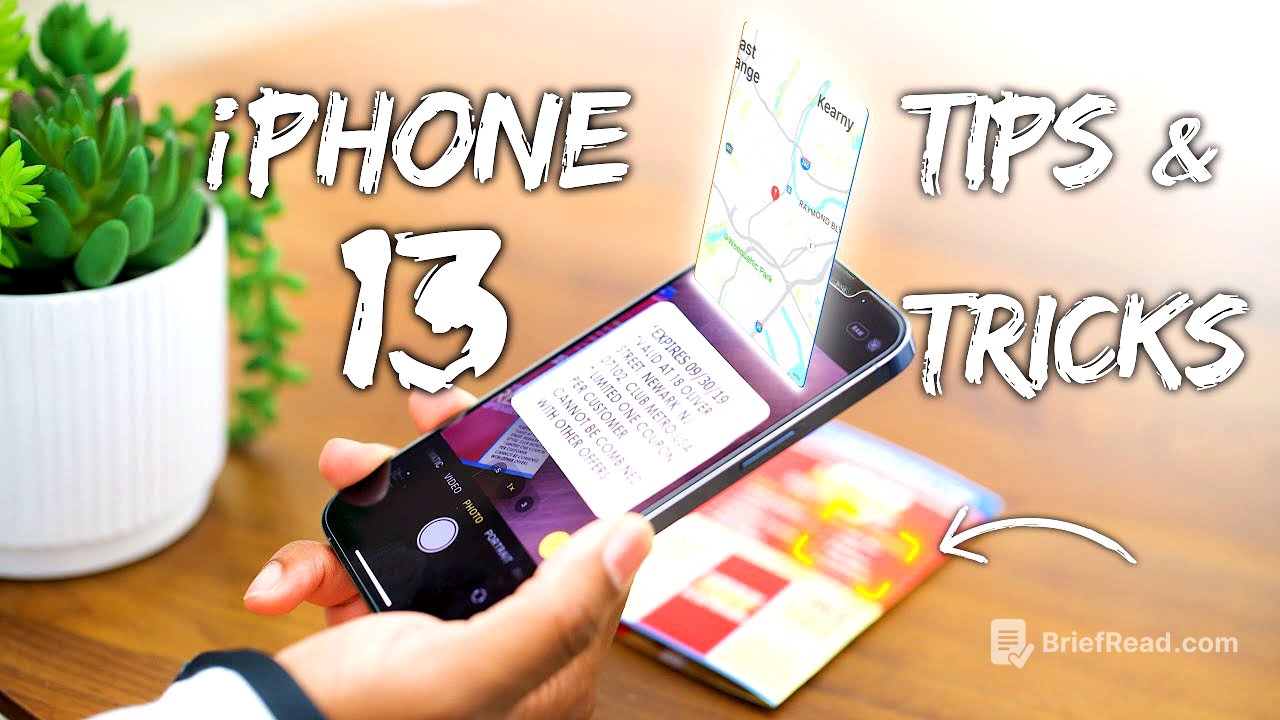
TLDR;
This video provides various tips and tricks for the iPhone 13 lineup. Key points include ways to customize the Safari interface, utilize the camera effectively, manage notifications with the Focus feature, and enhance security settings. It also introduces useful functions such as screenshots through back taps, FaceTime with non-iPhone users, and tracking your device even when powered off.
- Customizing Safari interface by adjusting the tab bar position.
- Using the camera to highlight and copy text from photos.
- Implementing the Focus feature to manage notifications based on different activities.
- Utilizing the Find My app for tracking an iPhone even when it’s powered off.
Customizing Safari [0:00]
Users can modify the new Safari search bar's position from the bottom back to the top. This can be done by accessing the options from the search bar or through the Safari settings in the device's settings menu. This customization allows for a more familiar browsing experience.
Camera Features [1:09]
The iPhone 13 camera has features that allow users to take pictures of text and then highlight, copy, or search the text later. This is particularly useful for students as they can photograph their textbooks and easily store important information in their notes. Additionally, the photographic styles allow users to apply consistent photo editing preferences directly from the camera.
Wi-Fi 6 Support and Internet Speed [2:51]
The iPhone 13 supports Wi-Fi 6 for faster internet speeds. The video mentions a sponsorship from Optimum, highlighting their new fiber network, which offers high-speed internet services and built-in security features. This capability enhances the overall performance, especially in households with multiple connected devices.
Triple Tap for Screenshots [3:56]
The video discusses a feature to enable screenshots using a triple tap on the back of the iPhone. This can be set up in the accessibility settings and allows users to assign various functions to single or double taps, streamlining the ability to take screenshots or perform specific actions quickly.
Focus Mode [4:44]
The Focus feature enables users to create different Do Not Disturb modes for activities like work or personal time. Users can customize which notifications they receive during these modes and can set up automated schedules to switch between modes without manual adjustment.
Privacy Settings [6:06]
Users can turn off the tracking permission request that apps send. By adjusting settings under privacy, users can stop apps from asking for permission to track their activities, thus enhancing their privacy and preventing data collection from apps.
Reachability Feature [6:58]
The Reachability feature allows users to pull down the screen for easier access to the top of a large iPhone while using it with one hand. This feature can be enabled in settings and helps navigate the device more comfortably.
FaceTime with Non-iPhone Users [7:42]
FaceTime now allows users to create links for video calls that can be shared with non-iPhone users. These users can join the FaceTime call through their browser without needing to download any apps, effectively bridging communication between Apple users and those on other platforms.
Find My iPhone Feature [8:32]
Even when the iPhone is powered off, it remains findable through the Find My app. This feature is crucial for locating a lost device, especially if someone tries to turn off the phone to disable tracking.
Using Siri for Quick Actions [9:13]
Users can utilize Siri to send links or messages seamlessly. By simply asking Siri to send a webpage to a contact, users can bypass several steps typically required to share information, making the process quick and convenient.