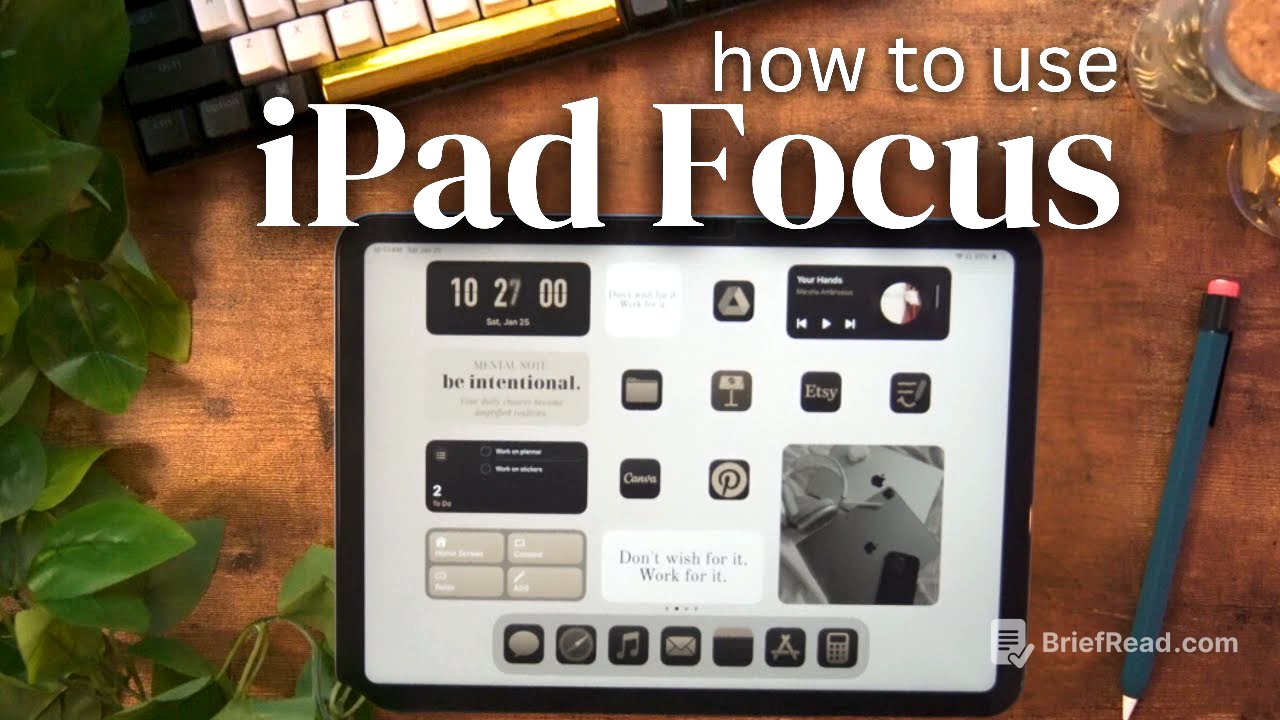
TLDR;
This video provides a comprehensive guide on setting up Focus modes on an iPad to enhance productivity and customize the user experience. It covers creating multiple home screens, utilizing shortcut widgets for quick access, setting up unique lock screens for each Focus, configuring Focus settings, and creating shortcuts to automate the switching process. The video also addresses common issues encountered during setup and provides solutions.
- Setting up different Focus modes on an iPad can significantly improve workflow and create a personalized user experience.
- The process involves creating multiple home screens tailored to specific tasks or activities.
- Utilizing shortcut widgets and setting up unique lock screens for each Focus can enhance the user experience.
- Configuring Focus settings and creating shortcuts to automate the switching process are essential steps.
- Troubleshooting common issues encountered during setup is crucial for a smooth implementation.
Intro [0:00]
The video introduces the concept of using Focus modes on an iPad to improve workflow and create a personalized experience. It mentions setting up different home screens for various activities like work, study, reading, or gaming. By using Focus modes, users can have the apps they need readily accessible while minimizing distractions.
Home Screen Pages [0:31]
To set up new home screens, you need to hold on the screen until the icons jiggle, then swipe left to add apps and widgets to each screen. It's recommended to set up a home screen for each Focus mode you plan to use, such as creativity, productivity, or entertainment. Each home screen should be tailored to provide quick access to the apps and tools needed for that specific Focus. A Pinterest board with backgrounds used in the setup is linked for viewers to use.
Shortcuts Widgets [1:50]
To quickly switch between Focus modes, the video suggests adding the shortcut widget to the home screen. This widget allows users to change settings with a single tap. It's important to have a button for each screen set up. The shortcut widget can be added to a smart stack if there isn't enough room on the home screen. Alternatively, Focus modes can be accessed from the control center. The order of home screens can be adjusted by going to edit, then edit page, and shifting the screens around.
Lock Screens [4:18]
Each Focus mode can have its own lock screen and home screen, creating a distinct look for each mode. To set this up, you need to add a lock screen for each Focus. While adding the lock screen, you can also customize the home screen background. The video references part one of the series for an in-depth tutorial on customizing lock and home screens.
Setting Up Focuses [6:44]
To configure Focus settings, go to settings, then focus. It's recommended to toggle off "shared cross devices" if you don't want the settings to apply to all Apple devices. You can add or customize Focus modes from this menu, which is also accessible from the control panel. To create a new Focus, select custom, choose a color and icon, and give it a name. Customize the Focus by choosing which people and apps can send notifications. This is also where you set up the home screen and lock screen for each Focus.
Setting Up Shortcuts [9:25]
To automate the switching of Focus modes, you need to set up shortcuts. Open the shortcuts app, select the plus sign, and search for "focus" then select "set Focus". In the shortcut, change "do not disturb" to the Focus you created and ensure it's set to "on". Name the shortcut and customize the icon. Repeat this process for each Focus mode. The video also addresses an issue where shortcut names conflict across devices and provides a solution. Create a folder for the new Focus shortcuts and add a shortcut to turn off all Focus modes and return to the home screen. Finally, edit the shortcut widget to select the folder created for the Focus modes.