
TLDR;
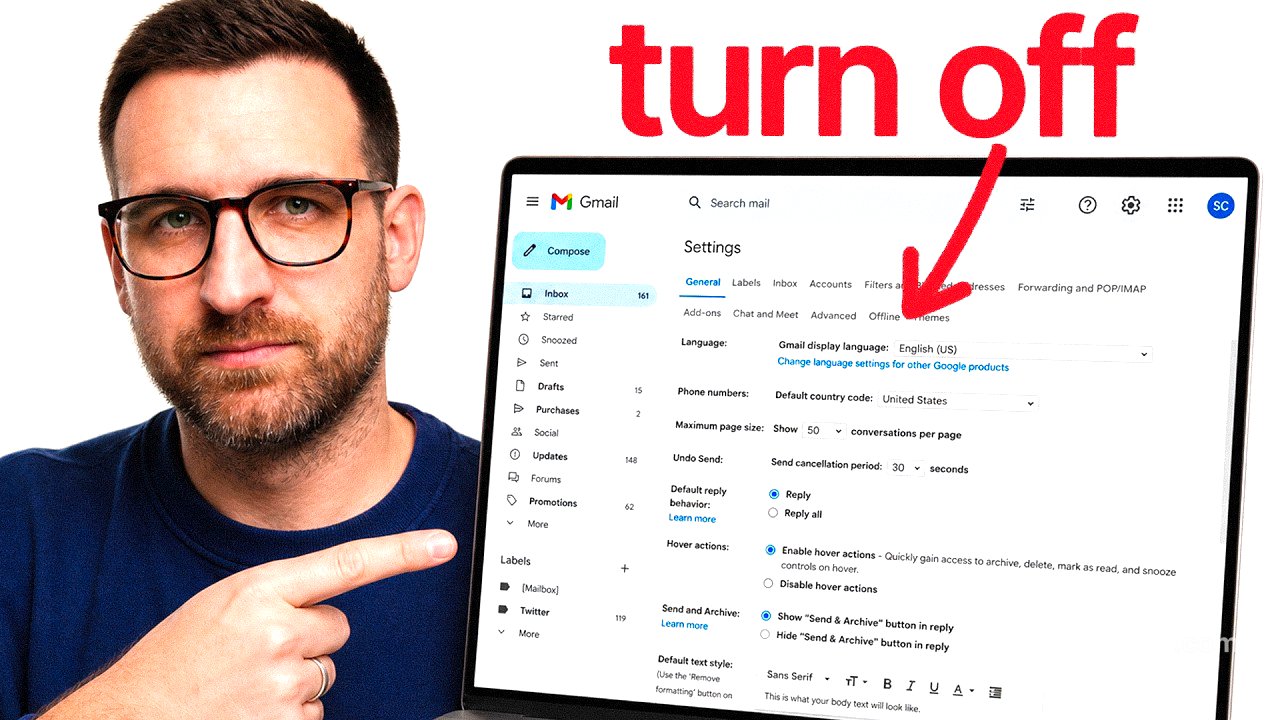
This video provides a guide on how to adjust Gmail privacy settings to prevent Google from reading your emails and using smart features that analyze your content. The presenter explains the steps to turn off these features on desktop, iPhone, and Android devices, ensuring more control over personal information and email tracking.
- Google reads personal emails for AI-driven smart features.
- The video demonstrates how to adjust settings on different devices to protect privacy.
Intro to Gmail privacy settings [0:00]
The video starts by highlighting that Google reads every personal email sent or received on Gmail. For those uncomfortable with this, the presenter promises to demonstrate how to turn off these features across different devices. The goal is to enhance privacy and protect personal information.
Turn off Gmail smart features on computer [0:29]
To disable Gmail smart features on a computer, go to settings, then find and uncheck the options for smart features and personalization. This action will prevent Google from analyzing emails to offer smart reply suggestions and other contextual features. The presenter emphasizes saving changes at the bottom of the page after making these adjustments.
Disable Google Workspace smart features [2:14]
In this chapter, the focus is on turning off Google Workspace smart features. Users must access the specific Google Workspace settings and toggle off both smart features and their use in other Google products. This adjustment further ensures emails are not analyzed for cross-product personalization and insights.
Block email tracking images on computer [3:04]
To block tracking images in emails, the presenter advises selecting the option to ask before displaying external images. This setting protects users from being tracked by spammers and allows them to control which images are loaded in their email, which can reveal when an email is opened.
Turn off Gmail smart features on iPhone [4:32]
On iPhone, users can access the Gmail app settings through a hamburger menu. The presenter instructs on disabling smart features and image loading settings to prevent email tracking. It’s crucial to adjust these settings on each account individually to maintain consistent privacy.
Block email tracking images on iPhone [5:29]
The chapter explains how to block tracking images on iPhone by enabling the option to ask before displaying external images within the app settings. This prevents email trackers from functioning and helps maintain privacy when opening emails.
Reset usage data and diagnostics on iPhone [5:55]
To further protect privacy, users can reset their Google usage ID within the settings. This means metrics collected before the reset will not be linked to future usage, offering a clearer separation between past and present data. The presenter notes the importance of managing diagnostic settings as well.
Turn off Gmail smart features on Android [7:15]
On Android devices, users should navigate through the Gmail app settings and review account-specific options. The presenter guides viewers to ensure smart features and diagnostic settings are toggled off for enhanced privacy, similar to the earlier instructions given for iPhone and desktop.
Block email tracking images on Android [8:20]
To block email tracking images on Android, the presenter suggests ensuring the setting to ask before displaying external images is active. This is crucial for preventing unauthorized tracking through email content and maintaining overall email security and privacy.






![How to Use Cursor PRO for Free with Claude 4.0 [August 2025]](https://wm-img.halpindev.com/p-briefread_c-10_b-10/urlb/aHR0cDovL2ltZy55b3V0dWJlLmNvbS92aS9WXzJnaFA2aVd1VS9ocWRlZmF1bHQuanBn.jpg)