TLDR;
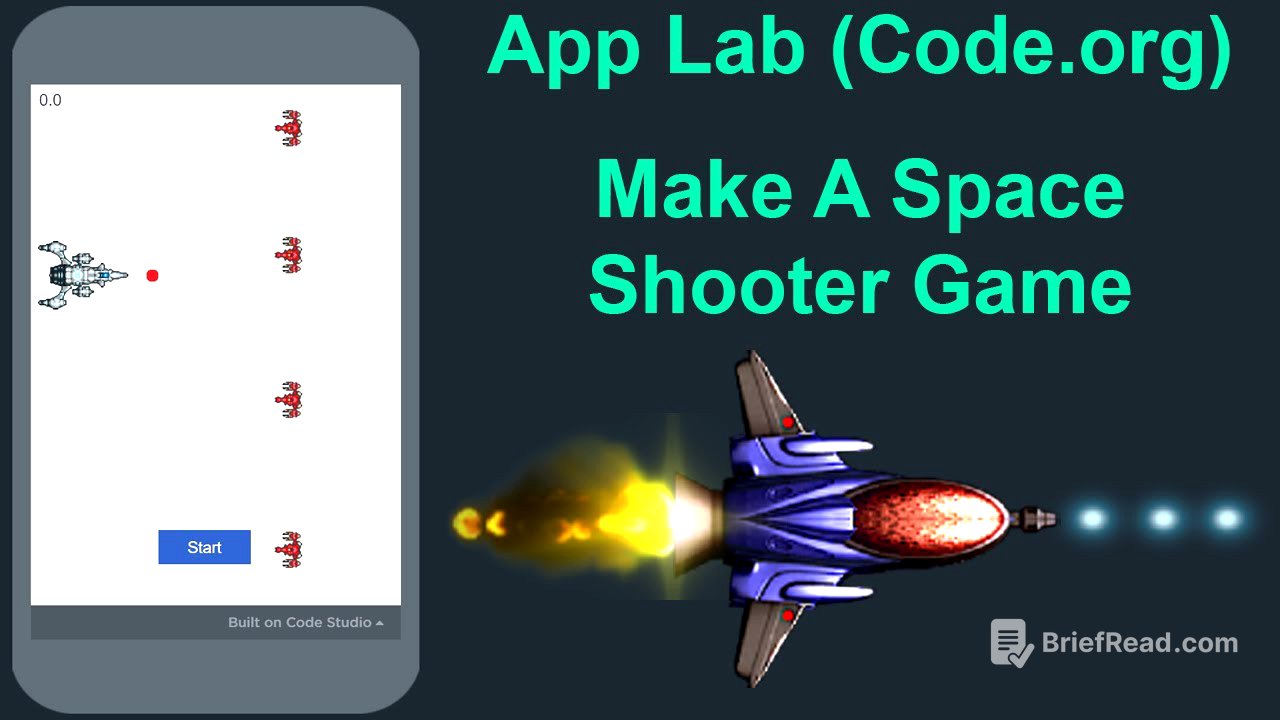
This tutorial explains how to create a space shooter game using Code.org's App Lab. It covers setting up the game interface, implementing player ship controls, creating enemy movements, adding a timer, enabling energy bolt firing, and detecting collisions. The goal is to destroy all enemies in the shortest amount of time.
- Setting up the game interface with images for the ship, enemies, and energy bolts.
- Implementing player ship controls using key events for up and down movement.
- Creating enemy movements with horizontal and vertical speeds.
- Adding a timer to track the elapsed time.
- Enabling energy bolt firing with collision detection to destroy enemies.
Introduction [0:00]
The tutorial introduces the creation of a space shooter game using Code.org's App Lab, demonstrating the game's mechanics, which include a timer that starts upon beginning the game, firing shots with the enter key, and enemies that speed up and move across the screen. The objective is to destroy all enemies as quickly as possible.
Setting Up the Interface [0:44]
The initial steps involve creating a new App Lab project named "space shooter" and importing graphics from open game art org, specifically from artist Morgan 3d. The process includes dragging images for the ship and enemies, naming them using a specific convention (e.g., image_ship), and uploading the image files. Resizing the images to remove any white borders that could affect collision detection is also covered.
Creating Game Objects [2:30]
The tutorial details the creation of enemy ships by duplicating the initial enemy image and renaming each one sequentially (image_enemy_1, image_enemy_2, etc.). These enemies are then aligned on the x-axis to ensure synchronized movement. Additionally, a small image is created for the ammo (energy bolt) and placed in front of the ship. A start button is added to the interface to initiate the game.
Implementing Player Ship Controls [6:24]
The process of enabling player ship movement involves renaming the screen to "screen_game" and using an on-event block to detect key presses. Local variables are declared to store the ship's current X and Y positions, and the distance the ship will move with each key press. If statements are used to check whether the up or down arrow key is pressed, and the ship's Y position is adjusted accordingly. The setPosition function is then used to update the ship's position on the screen.
Creating Vertical Wrap Around Function [12:01]
A function named "vertical wrap around" is created to allow objects to reappear on the opposite side of the screen when they move off the top or bottom edges. This function takes an object ID as a parameter, gets the object's X and Y positions and height, and checks if the object is halfway off the screen. If it is, the object's Y position is adjusted to place it on the opposite side. This function is then called within the key down event listener to make the ship wrap around the screen.
Declaring Global Variables [17:56]
Several global variables are declared to manage the game state. These include gunLoaded (a boolean to control firing), enemiesMovingLeft (a boolean to control enemy direction), gameStarted (a boolean to track if the game has started), enemiesRemaining (a number to track remaining enemies), startTime (to record the start time), and elapsedTime (to track elapsed time). Global variables are declared at the top of the program for easy access and understanding.
Creating Fire Function [19:43]
A function named "fire" is created to handle the firing of energy bolts from the spaceship. This function checks if the gun is loaded, gets the ship's current position, calculates the position of the energy bolt in front of the ship, and moves the energy bolt to that position. The gunLoaded variable is set to false after firing, and the function is called when the Enter key is pressed.
Implementing Start Button Event Listener [24:56]
An event listener is created for the start button to initialize the game. When the button is clicked, the gameStarted variable is set to true, the start button is moved off the screen, and the startTime variable is initialized with the current time. A timed loop is then created to run every 50 milliseconds, which will be used to move objects and check for collisions.
Creating Timer [27:32]
A label is added to the interface to display the elapsed time. A function named "update time" is created to calculate the elapsed time since the game started and update the label with the current time. This function gets the current time, calculates the elapsed time, converts it to seconds, formats it to one decimal place, and sets the label's text to the elapsed time. The "update time" function is called from within the timed loop to update the timer every 50 milliseconds.
Moving Energy Bolt [30:24]
A function named "move energy bolt" is created to move the energy bolt across the screen. This function gets the energy bolt's current position, calculates the new position based on its speed, and moves the energy bolt to the new location. When the energy bolt moves far enough off the screen, the gunLoaded variable is set to true, allowing the player to fire again. The energy bolt is initially moved off the screen when the game starts and the "move energy bolt" function is called from within the timed loop.
Moving Enemies [34:41]
A function named "move enemy" is created to move the enemies around the screen. This function takes an enemy ID as a parameter, gets the enemy's current position, calculates the new position based on its speed and direction, and moves the enemy to the new location. The enemies move down and then move left and right, changing direction when they hit the edges of the screen. The "vertical wrap around" function is called to make the enemies reappear on the opposite side of the screen when they move off the top or bottom edges. The "move enemy" function is called for each enemy from within the timed loop.
Collision Detection [41:49]
A function named "collision detection" is created to detect collisions between the energy bolt and the enemies. This function takes an object ID as a parameter, gets the positions and dimensions of the energy bolt and the object, and checks if they are overlapping. If a collision is detected and the object is not already hidden, the object is hidden, and the enemiesRemaining variable is decreased by one. If there are no enemies remaining, the timed loop is stopped, and the energy bolt is hidden. The "collision detection" function is called for each enemy from within the timed loop.