TLDR;
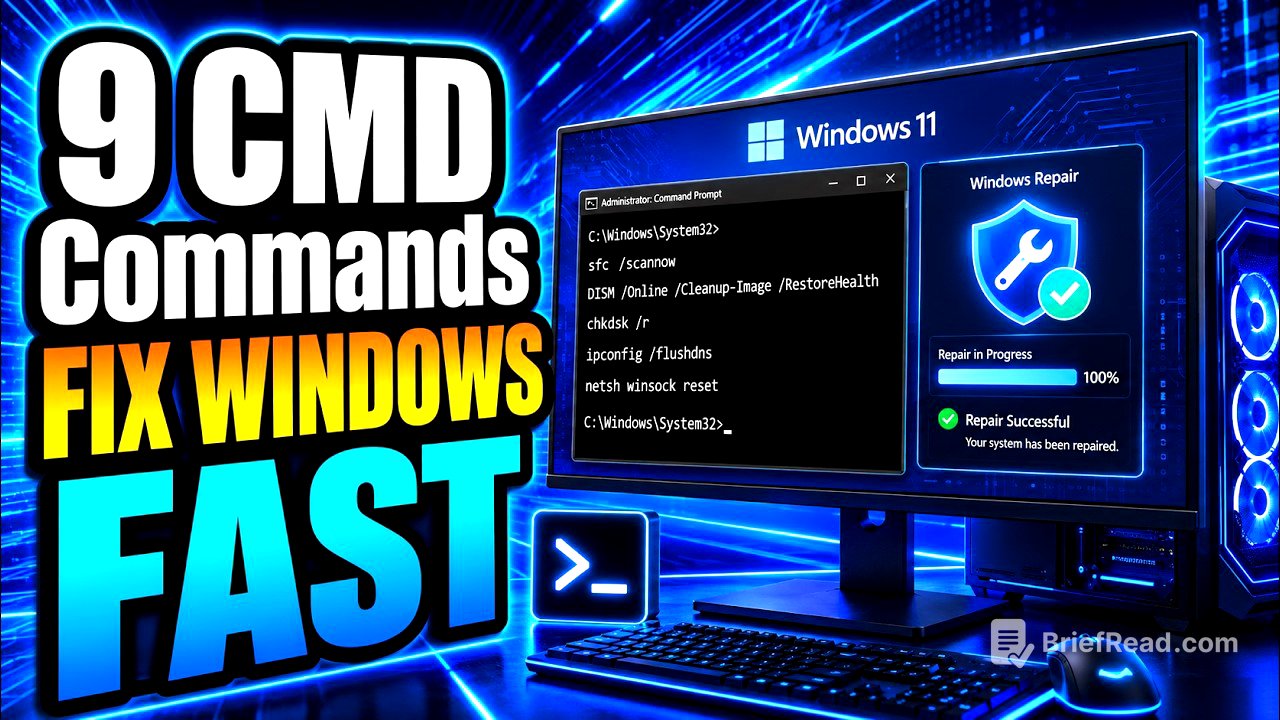
This video provides a comprehensive guide to using built-in Windows commands to troubleshoot and fix common PC issues. It covers updating apps, checking system files, repairing hard drives, resolving network problems, assessing drive health, managing processes, and analysing power consumption. Additionally, it highlights the importance of testing RAM for errors.
- Using command prompt with admin access to fix common PC issues.
- Nine commands are built right into Windows that can fix most of the issues.
- Includes bonus tip about Windows memory diagnostic tool.
Introduction [0:03]
Instead of reinstalling Windows, paying for repair apps, or taking your PC to a shop, the video suggests using built-in Windows commands to fix common issues like freezing, crashing, or losing internet connection. These nine commands, accessible via the command prompt with administrator access, can resolve many problems. The video provides a step-by-step guide on how to access the command prompt as an administrator.
Winget Upgrade --all: Updating Apps [0:49]
The first command, winget upgrade --all, updates all installed apps on your PC. Winget is Microsoft's built-in package manager, and this command identifies and updates every app with a newer version available, including browsers, media players, and drivers. Updating apps can resolve many issues caused by outdated software. To see what updates are available before running the command, use winget upgrade. Regularly updating apps can prevent future problems.
SFC /scannow: System File Checker [1:47]
The second command, sfc /scannow, initiates the System File Checker. This tool scans all protected Windows system files, comparing them to clean reference copies and replacing any corrupted or altered files. After the scan, one of three messages will appear: no issues found, problems found and fixed (in which case, restart and rerun the scan), or problems found but not fully fixed. If the last message appears, the next command addresses this situation. Restart your PC after running this command.
DISM /Online /Cleanup-Image /RestoreHealth: Deployment Image Servicing and Management [2:43]
The third command, DISM /Online /Cleanup-Image /RestoreHealth, complements the sfc /scannow command. DISM (Deployment Image Servicing and Management) operates at a deeper level, fixing the reference store from which SFC pulls clean copies. It connects to Microsoft servers to download fresh, verified system components. An active internet connection is required, and the process can take 15-20 minutes. After completion, restart the PC and rerun sfc /scannow. Using DISM before SFC enhances the effectiveness of system file repair.
CHKDSK /r: Check Disk [3:48]
The fourth command, CHKDSK /r, or Check Disk, scans the hard drive for file system errors and physical bad sectors. The /r flag performs a deep scan, locating bad sectors, salvaging readable data, and fixing file system issues. Since the C drive is in use, the scan will be scheduled for the next restart. Type Y or Yes when prompted and reboot the PC to run the scan before Windows loads.
ipconfig /flushdns, /release, /renew: DNS Resolver Cache [4:52]
The fifth command addresses internet connectivity issues. The command ipconfig /flushdns clears the DNS resolver cache, which stores website addresses for faster loading. Stale or broken entries in this cache can cause websites to load incorrectly or not at all. Following this, ipconfig /release drops the current IP address, and ipconfig /renew obtains a new one from the router. This combination of commands (flush, release, renew) often resolves internet connection problems without needing to restart the router.
netsh winsock reset, netsh int ip reset, netsh int tcp reset: Resetting Network Settings [5:54]
The sixth command goes deeper into network troubleshooting. If the previous commands didn't fix the network issue, the problem might be in the Windows networking stack. The command netsh winsock reset resets the WinSock catalog, which manages communication between apps and the network. Additionally, netsh int ip reset resets the TCP/IP stack to its default settings, and netsh int tcp reset specifically resets TCP connection settings. A PC restart is required after running these commands for the changes to take effect.
PowerShell "Get-PhysicalDisk | Format-Table": Checking Drive Health [7:00]
The seventh command checks the health of the hard drive or SSD. Instead of the outdated wmic command, the video uses PowerShell. The command powershell "Get-PhysicalDisk | Format-Table FriendlyName, MediaType, Comm, HealthStatus, OperationalStatus" run from the command prompt, retrieves a status report from the drive, indicating its health. If the report shows anything other than "Healthy", it's crucial to back up data immediately as the drive may be failing.
tasklist and taskkill: Managing Processes [8:04]
The eighth command helps identify and terminate resource-hogging processes. The command tasklist displays a list of all running processes with their process ID (PID) and memory usage. If a suspicious or frozen app is consuming excessive resources, note its PID. Then, use taskkill /PID [PID number] /f to force-close the process. Alternatively, taskkill /im [process name] can be used to kill a process by its name.
powercfg /energy: Analysing Power Consumption [9:07]
The ninth command is particularly useful for laptop users and those experiencing unusual power drain. The command powercfg /energy monitors the system for 60 seconds and generates a detailed HTML report, saved to C:\WINDOWS\system32\energy-report.html (the exact path will be shown in the command output). This report identifies energy-related issues, such as devices preventing sleep mode, USB devices waking the system, misconfigured power policies, and problematic drivers.
Windows Memory Diagnostic: Testing RAM [10:10]
As a bonus, the video recommends the Windows Memory Diagnostic tool for identifying faulty RAM. This tool can be accessed by searching for "mdsched" in the search bar. The diagnostic performs a full scan of all RAM modules and reports any errors. If errors are found, the faulty RAM stick needs to be replaced.