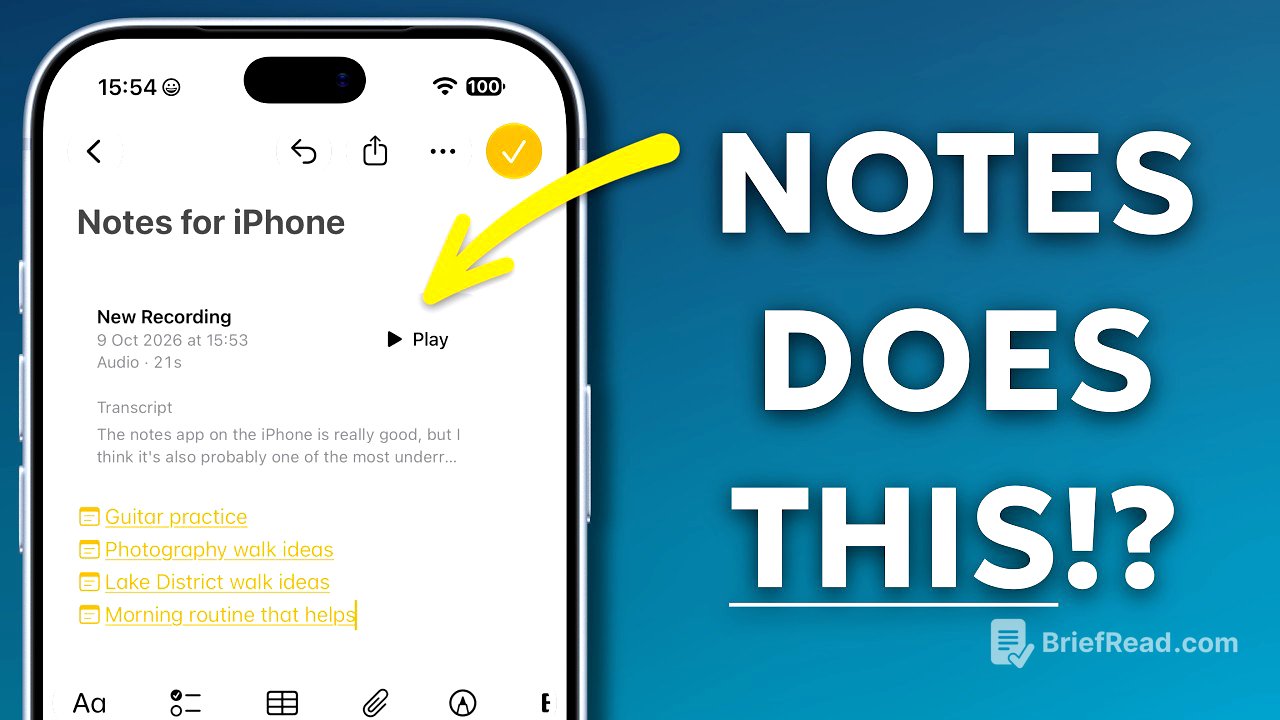
TLDR;
This video covers eight useful features of the Apple Notes app, showing how to leverage it beyond simple note-taking. Key points include:
- Document scanning to digitize paper notes.
- Recording audio notes and converting them to text.
- Creating an index for better note organization.
- Using headers to hide and reveal sections of notes.
- Linking directly to specific sections within notes.
- Performing calculations within notes without a separate app.
- Locking notes for privacy.
- Collaborating on notes in real-time with others.
Intro [0:00]
The video introduces the Apple Notes app, highlighting that many users only utilize basic functions. It promises to reveal eight hidden features, including some from the newest iOS update, that can significantly enhance the app's utility.
Scanning in Documents [0:31]
Users can digitize physical documents by creating a new note and using the paperclip icon to select the "scan documents" option. The app allows the user to align the phone with the document to create high-quality scans. Users can adjust the scan, apply filters, and delete unnecessary pages. Scanned documents are stored within notes and are searchable, simplifying the process of retrieving information.
Recording Audio into a Note [4:09]
The video demonstrates the audio recording feature, allowing users to dictate notes rather than typing. By selecting the record audio option from the paperclip menu, users can capture their voice, which can be transcribed later for easy reference. After recording, users can add the transcript directly to the note, making it highly searchable.
Creating Indexes [7:01]
Users can create an index note to organize multiple note entries. By linking notes to keywords in the index, users can quickly navigate to specific notes related to topics like hobbies. The pinning feature ensures the index is always accessible at the top of the folder, improving organization.
Hide content with Headers [9:29]
This feature allows users to manage cluttered notes by utilizing headers to hide and show sections. By creating headers, users can conceal information beneath them, simplifying navigation within lengthy notes. Tapping the header arrow collapses or expands the content, making it easy to focus on what's important.
Link to Sections [11:07]
A new iOS feature allows users to link directly to specific sections of a note. After selecting a note with multiple sections, users can create links to points like "important" or "less important" sections. This enhances navigation, especially in detailed notes, allowing quick access to relevant information.
Calculations [12:31]
The video explains how to carry out basic calculations directly in the Notes app. By entering equations like "85 plus 20" and pressing equals, users can see the result displayed above the keyboard. This eliminates the need for a separate calculator app for simple calculations.
Locking Notes [14:10]
The locking feature provides a way to keep sensitive notes private. By accessing the ellipsis menu, users can lock notes with a password. Locked notes appear with a padlock icon and are hidden from previews. To access them, users must input their password, ensuring confidentiality.
Collaborating on a note [15:48]
The collaboration feature allows users to share notes with others for real-time editing. By selecting the share option, users can send a link to collaborate. The ability to choose different permissions ensures that users can control whether others can view or edit notes as needed.