
TLDR;
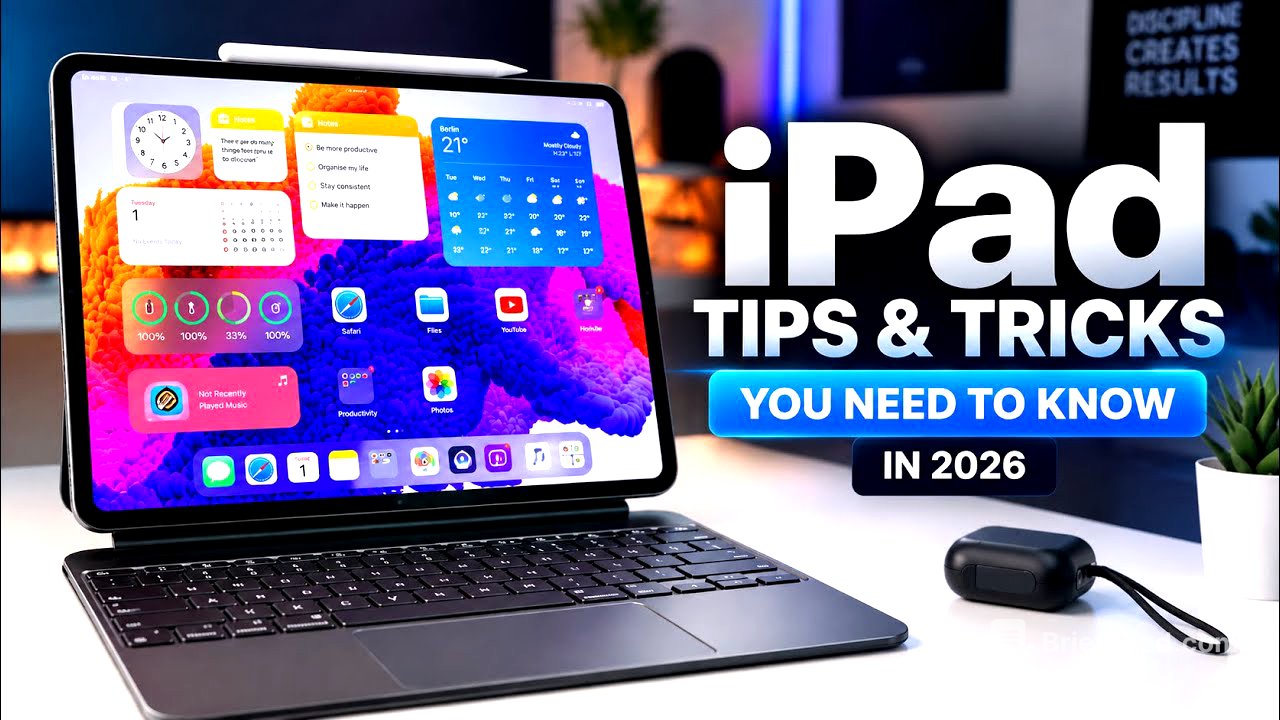
In this video, the host shares 25 tips and tricks for maximizing the use of the iPad Pro M4. The tips cover various features and tools that help improve productivity, enhance user experience, and organize workflows.
- State Manager allows multiple apps to be open simultaneously for efficient multitasking.
- Spotlight Search enables quick access to information and calculations directly from the home screen.
- Apple Pencil Pro features such as the squeeze gesture and hover enhance drawing and writing accuracy.
- The Files app is crucial for organizing documents, while connecting an external monitor can transform the iPad into a desktop-like workstation.
Maximizing iPad Pro M4 Potential [0:00]
The video begins with the host reflecting on her realization of the iPad Pro M4's capabilities. She introduces 25 important tips designed for both new and experienced users to help them fully utilize their device.
State Manager: Enhanced Multitasking [0:39]
The State Manager feature allows users to keep multiple applications open at once, enabling easy access and organization. This tool has become essential for the host's work, especially when researching and organizing YouTube content.
Spotlight Search: Instant Information Access [1:18]
Spotlight Search provides a quick way to search through apps, files, notes, and settings. The host highlights its additional capabilities, such as performing calculations and conversions without needing other apps.
Apple Pencil Pro: More Than Just a Stylus [1:56]
The Apple Pencil Pro incorporates features like the squeeze gesture for quick access to shortcuts and hover functionality that allows for precise drawing placement. These enhancements make it an invaluable tool for artists and creators.
Utilizing the Files App [2:30]
The host emphasizes the importance of the Files app for organizing documents and connecting external storage. It is essential for managing various types of content efficiently.
Transforming iPad into a Desktop Workstation [2:56]
By connecting an external monitor, users can extend their workspace, allowing for increased productivity and a more desktop-like experience when using the iPad Pro.
Live Text Features for Easier Work [3:21]
Live Text allows users to copy text directly from images or documents using the iPad’s camera. This feature saves time and enhances productivity by eliminating the need for manual typing.
Visual Lookup: Identifying the World Around You [3:56]
Visual Lookup enables users to identify objects in photos, such as plants or landmarks, helping to gather information quickly while traveling.
Apple Notes: A Hidden Gem [4:32]
Apple Notes offers robust features for organization, including the ability to create checklists, scan documents, and use a stylus for handwriting, making it a powerful tool for project planning.
Wikit and Smart Stack for a Cleaner Home Screen [5:04]
Wikit allows users to view key information without opening multiple apps, while Smart Stack organizes widgets on the home screen by showing the most relevant widgets throughout the day.
Focus Mode: Minimizing Distractions [5:25]
Focus Mode lets users customize their iPad for different activities, with unique notifications and home screens for work, study, and personal time, enhancing productivity.
Universal Clipboard: Seamless Integration [5:59]
The Universal Clipboard feature enables users to copy content from one Apple device and paste it onto another seamlessly, facilitating smooth workflow across devices.
AirDrop: Easy File Sharing [6:45]
AirDrop allows users to share files wirelessly between Apple devices effortlessly. This feature simplifies transferring photos, videos, and documents.
Safari Profiles: Keeping Browsing Organized [7:15]
Safari Profiles help users maintain different browsing experiences by separating work and personal websites, bookmarks, and histories.
Split View: Efficient Multitasking [7:45]
The Split View feature allows users to have two apps open side by side, which enhances productivity by facilitating research and writing or referencing materials simultaneously.
Enhanced Screenshot Capabilities [8:03]
After taking a screenshot, users can edit it directly, adding highlights, notes, and even saving entire web pages as PDFs for better organization of information.
Free Form: Unlimited Digital Whiteboard [8:29]
Free Form is an app that allows users to brainstorm and organize ideas freely, providing a flexible space for creativity and project planning.
Document Scanning Made Easy [8:57]
The built-in document scanning feature in Apple Notes and Files allows for easy image capture of documents, automatically improving image quality and saving them in PDF format.
Battery Optimization Tips [9:21]
To maintain battery health, users should keep their iPads updated, adjust brightness settings, and manage app refresh settings to extend battery longevity.
Find My: Protecting Your Device [9:43]
The Find My feature helps locate a lost or stolen iPad, allowing users to play a sound, mark it as lost, or erase personal data to safeguard privacy.
Interactive Widgets: Quick Task Management [10:09]
Interactive widgets allow users to manage tasks, such as setting timers or controlling music, directly from the home screen without needing to open apps.
Customizing Control Center [10:30]
Users are encouraged to customize their Control Center to include frequently used shortcuts for improved accessibility and efficiency.
Focus Filters: Tailored App Experiences [10:48]
Focus Filters adjust the content visible within apps based on the user's current activity, providing a tailored experience and enhancing concentration.
Apple Intelligence: Future Updates [11:06]
Apple Intelligence features, powered by AI, will assist users in writing and organizing information more effectively, with updates rolling out based on device capabilities and region.
Finalize Your Personal Workspace [11:28]
The host concludes by encouraging users to customize their iPad setup to match their personal workflow and lifestyle, promoting a more personalized and efficient user experience.