
TLDR;
This video provides a comprehensive guide on using Siri AI writing tools on the iPhone, specifically the iPhone 15 Pro and newer models. Key features covered include writing and rewriting emails, proofreading text, summarizing emails, extracting key points, and organizing notes.
- Siri can automatically write emails and messages.
- Various functions such as proofreading and summarizing can greatly enhance communication.
Siri AI Writing Tools on iPhone [0:00]
Dan introduces the Siri AI capabilities for writing on iPhones. Users can utilize Siri to write emails, rewrite messages, fix grammar and spelling, change writing tones, and summarize lengthy communications.
How to Enable and Find Siri AI Writing Tools [0:24]
To access the Siri AI writing tools, ensure Siri is enabled in the settings and that you are using an iPhone 15 Pro or newer. Users can find these tools within text input areas such as notes or emails by tapping in the text box to reveal options like "write with Siri" and "proofread".
How to Write an Email With Siri AI [1:07]
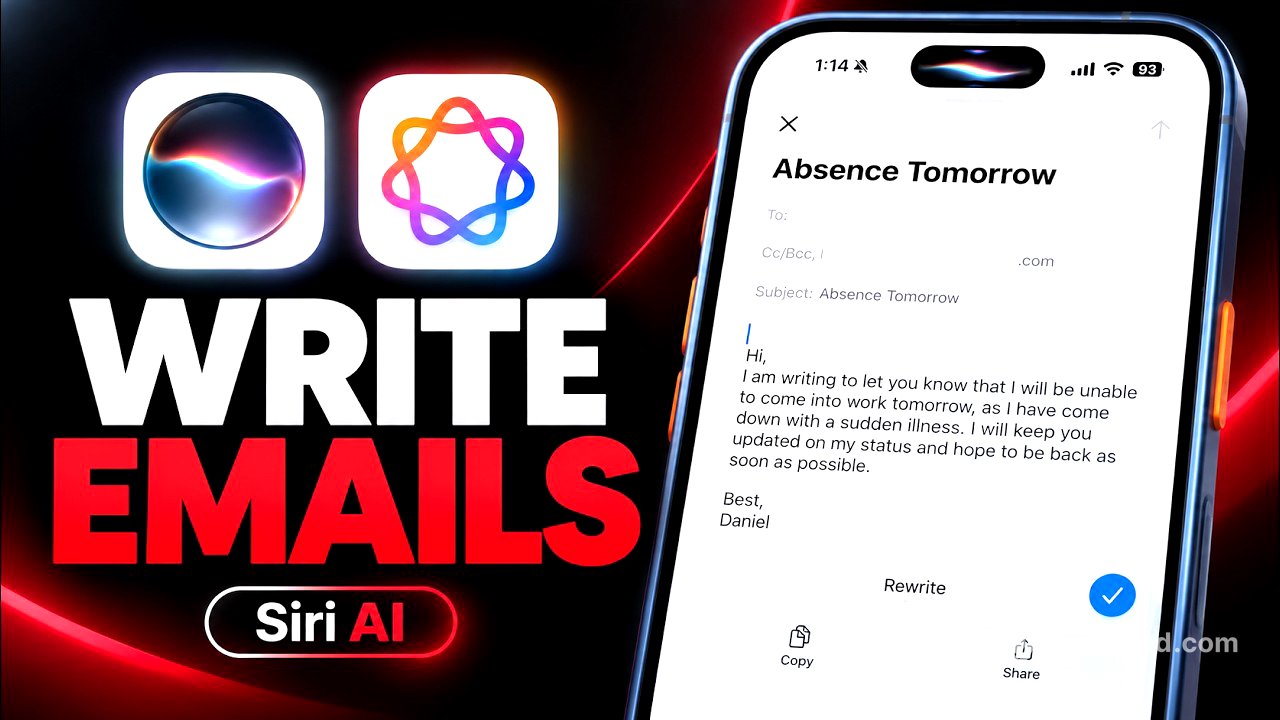
Dan demonstrates how to create a professional email using Siri. By tapping on the screen in an email draft area, users can dictate the content they want Siri to write. He provides an example where Siri generates a message to inform a boss about missing work due to illness, showcasing how easy it is to paste the created text into the email.
How to Rewrite Emails and Change Writing Tone [2:18]
Users learn how to improve poorly written emails. After dictating a first draft, they can select the text, request a rewrite, and see Siri transform the message into a more professional format. Dan emphasizes the ability to compare the original text with the rewritten version and make additional edits.
How to Proofread Text and Fix Grammar [4:31]
The proofreading functionality is highlighted, where users can highlight text and select the proofread option. Siri corrects punctuation and capitalization errors, allowing the user to review all changes and revert any that they prefer to keep.
How to Summarize Emails and Messages [6:07]
Dan describes how to summarize large emails using Siri. Users can tap a summarize tab in the mail app or highlight text and ask Siri to provide a summary. This functionality allows for concise overviews of lengthy communications.
How to Extract Key Points and Bullet Notes [7:16]
This section outlines how users can ask Siri to create bullet points from an email. By dictating requests for key points, the summarized information is broken down into easily understandable notes.
How to Find Saved Conversations in the Siri AI App [7:40]
Dan notes that users can access previously discussed topics within the Siri AI application, but mentions that specific rewritten content does not appear there. This allows for a continued conversation and edits based on earlier exchanges.
How to Use Siri AI Writing Tools in Messages [8:33]
The video explains how to use Siri AI writing tools in iMessage. Users can dictate messages and also utilize the proofreading and rewriting features just as they would in email apps, enhancing communication in messaging.
How to Summarize a Website With Siri AI [9:35]
Dan demonstrates summarizing information from a webpage. Users can ask Siri for a summary, which provides an overview of the content, and they can request specific details or bullet points to get more organized information.
How to Organize Notes and Create Lists [10:33]
This chapter highlights how to use Siri to organize notes. Users can dictate to categorize lists into sections, making them easier to navigate while shopping or planning tasks.
How to Write Emails and Notes With Siri Commands [11:32]
Dan details how users can directly ask Siri to write emails or notes by confirming a command in conversation. This streamlines the process of generating professional correspondence and personal notes.
How to Shorten Long Emails and Messages [12:19]
Users learn how to condense lengthy texts. Dan shows that by highlighting the content and asking Siri to shorten it, users can transform verbose messages into concise communication.
How to Create Tables With Siri AI [12:55]
Dan illustrates how to format statistics into a table within notes by instructing Siri to organize the information. This feature adds clarity to data presentation.
Final Siri AI Writing Tips [13:40]
Dan wraps up with additional tips on maximizing Siri's writing features. He suggests various uses, such as creating lists, drafting professional emails, and improving written communication efficiently through voice commands.