
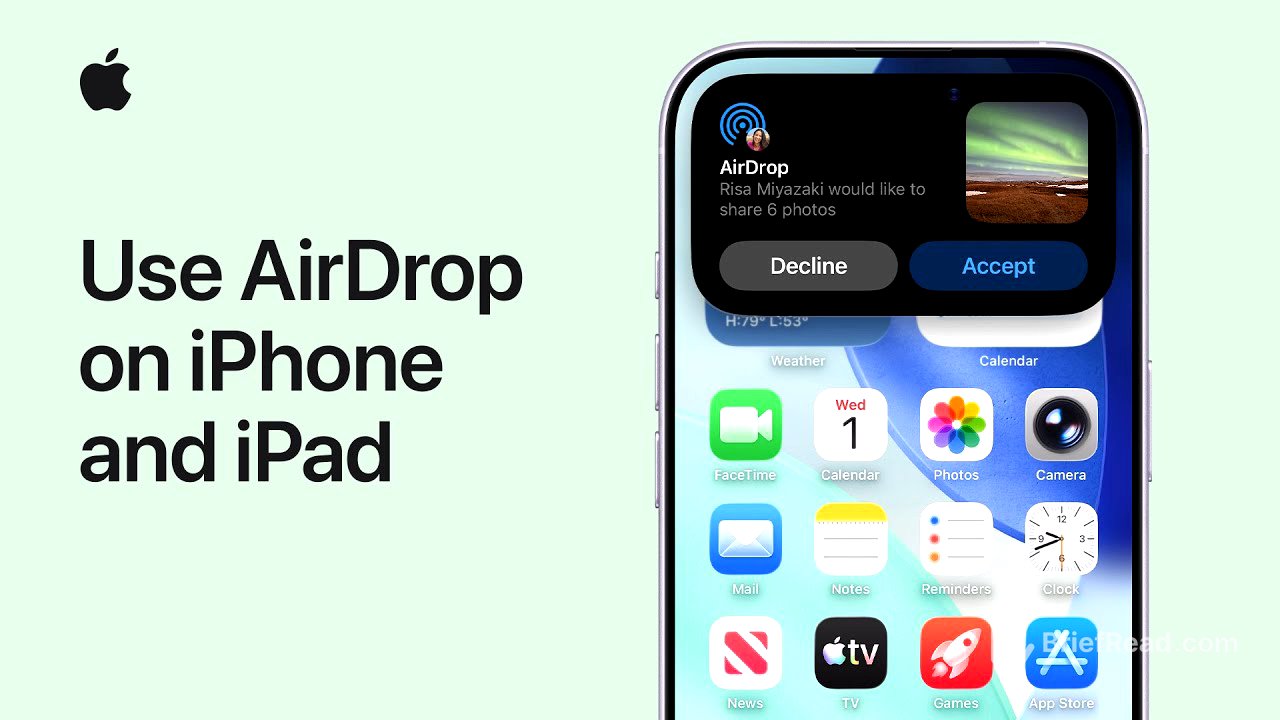
TLDR;
This video provides a comprehensive guide on how to use AirDrop to share files between Apple devices easily. Key points include:
- Ensuring both devices have Wi-Fi and Bluetooth on, and Personal Hotspot off.
- Instructions for sharing files with contacts and those not in contacts.
Getting Started with AirDrop [0:00]
AirDrop allows you to share photos, videos, and large files from your iPhone or iPad to nearby Apple devices quickly. Before using AirDrop, ensure the recipient is close, and both devices have Wi-Fi and Bluetooth enabled. If Personal Hotspot is active, it needs to be turned off for AirDrop to work effectively.
Sharing with Contacts [0:49]
To share files using AirDrop with someone in your contacts, you can either bring your devices close together or use the Share button in any compatible app, like Photos. First, select the photos you wish to share, tap Share, and select AirDrop. If the person is nearby, their name will appear under People. Once you tap their name, they need to confirm the transfer by tapping Accept, and the shared item will automatically open on their device if a compatible app is present.
Sharing with Non-Contacts [1:55]
When sharing with someone not in your contacts, they must adjust their AirDrop settings to receive the file. They should access the Control Center, long-press on the Connectivity controls, select AirDrop, and choose "Everyone for 10 Minutes." On your device, tap the recipient's name as it appears under People. If both devices run iOS 26.2 or later, they will need to enter an AirDrop code you send for the transfer to occur. Once the transfer is complete, the recipient can tap View to open the received file. Note that when sharing with a code, the recipient is temporarily added to your contacts list for 30 days.