TLDR;
This video demonstrates how to manually clean a printhead on a Canon MG6620 printer. It covers removing the printhead, cleaning it with water, drying it, and reinstalling it. Additionally, it discusses using aftermarket ink cartridges and performing a nozzle check pattern to ensure the printhead is functioning correctly. The video also touches on the printer's page count and the option of using the printer's built-in cleaning function as an alternative.
- Manual cleaning of a printhead on a Canon printer.
- Using water to clean the printhead and ensuring it's dry before reinstallation.
- Performing a nozzle check pattern to verify the cleaning was successful.
Removing the Printhead [0:24]
To begin, open the front unit of the Canon printer to access the printhead. Remove the ink cartridges first. This process is applicable to most Canon Pixma printers. With the carriage in the middle, push the printhead to the right to remove it. The printhead model number (qy6 0082 in this case) can be found on the side of the printhead.
Manually Cleaning the Printhead [1:22]
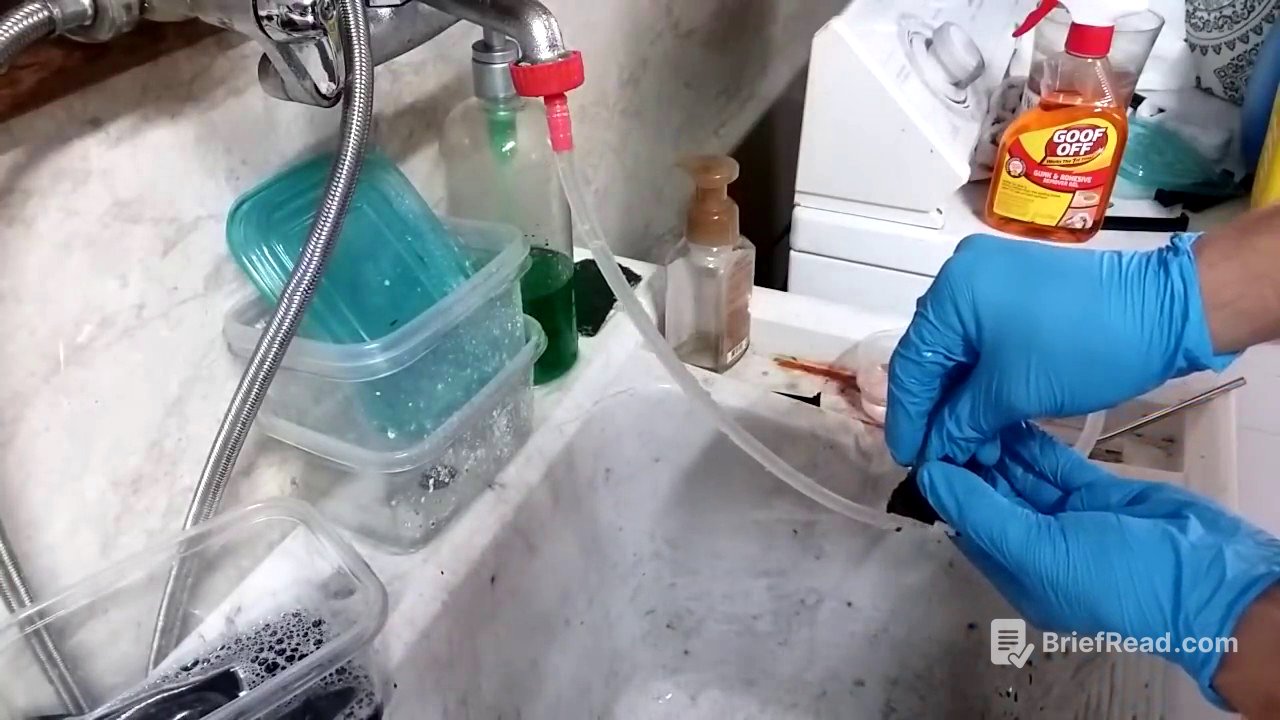
Take the printhead to a sink with a hose setup. If the printhead is heavily clogged, soak it in a cleaning solution or hot water before rinsing. When rinsing, avoid applying too much pressure to prevent damage. Use the hose to push water through each color nozzle until the water runs clear and the lines are straight without any missing bars.
Drying and Reinstalling the Printhead [5:04]
Before reinstalling the printhead, ensure it is completely dry, especially on the contact side. Use a dryer or fan to dry it thoroughly. Reinstall the printhead back into the printer. The presenter uses aftermarket ink cartridges, which work fine for general use, although some users prefer Canon ink for photo printing due to quality concerns.
Performing a Nozzle Check Pattern [6:51]
After reinstalling the printhead and ink cartridges, close the front door and allow the printer to get ready. Navigate to the printer's setup menu, then maintenance, and select "print nozzle check pattern." This will print a test page to verify that all colors and nozzles are working correctly. A good report indicates that the printhead is clean and functioning properly. The printer's page count is also displayed on this report, indicating the printer's usage.
Alternative Cleaning Method [8:39]
As an alternative to manual cleaning, the printer's built-in cleaning function can be used. This option is found in the maintenance menu under "cleaning" or "printhead cleaning." While convenient, this method uses a significant amount of ink. Manual cleaning is more efficient and helps flush out any hardened ink.