TLDR;
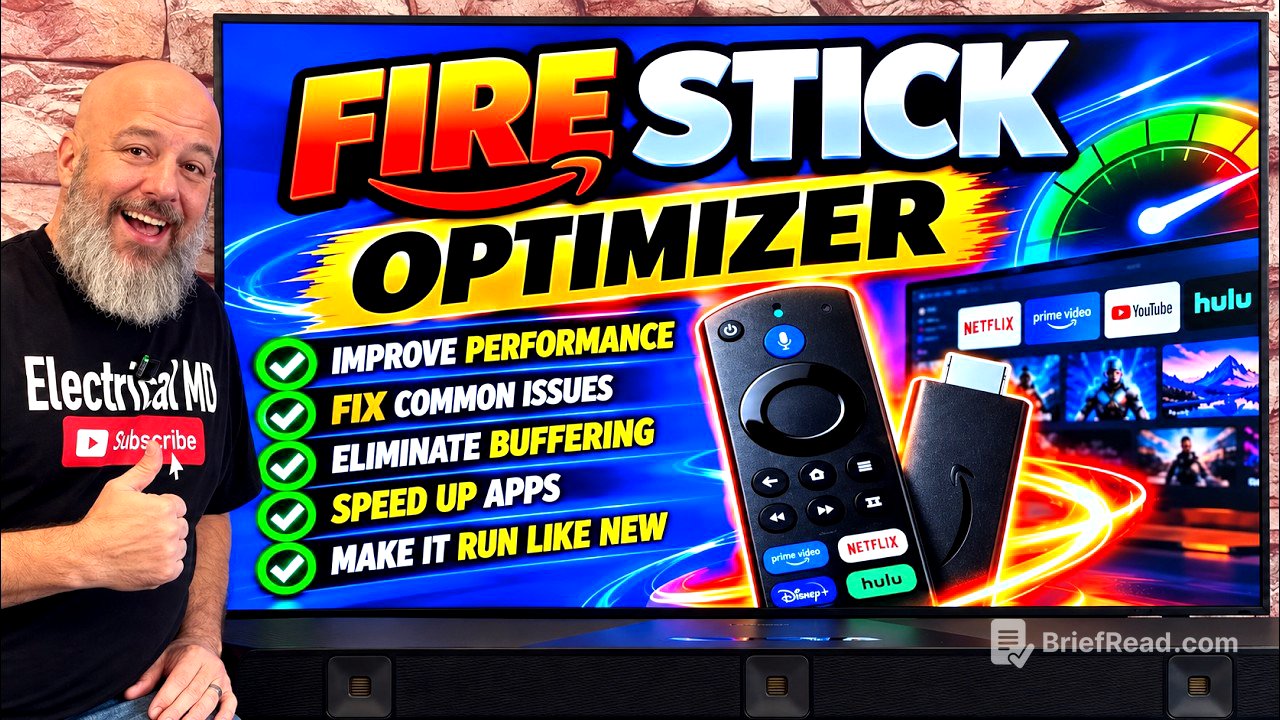
In this video, the presenter addresses common issues users experience with the Amazon Fire Stick, such as downloading apps and buffering while watching movies. The video aims to provide troubleshooting steps to enhance the device's performance and resolve various problems effectively.
- Users face issues like error codes when downloading apps and buffering while streaming.
- Key solutions include checking for software updates, managing storage space, adjusting network settings, and optimizing device performance.
Fixing Download Issues and Buffering [0:00]
The video begins by acknowledging common frustrations with the Amazon Fire Stick, such as download errors and buffering. The presenter promises to help viewers resolve these issues quickly so they can enjoy their favorite content again.
Navigating Fire Stick Settings [0:59]
The first step involves accessing the Fire Stick settings through the hamburger menu on the remote. The presenter demonstrates how to check for software updates in "My Fire TV," highlighting that keeping the device updated is crucial for optimal performance.
Managing Storage Space [2:13]
Storage issues are addressed as a common reason for download errors, where limited space leads to misleading error messages. The presenter guides viewers to "manage installed applications," encouraging them to uninstall unused apps to free up space for new downloads.
Adjusting Network Settings [3:37]
The presenter explains the importance of network connectivity and how the router's location can affect performance. Suggestions include relocating the router for better coverage or using an Ethernet adapter to connect the Fire Stick directly. Troubleshooting common network error messages like "parse error" and recommending using a VPN is also discussed.
Improving Fire Stick Performance [6:19]
The video continues with tips to enhance Fire Stick performance by adjusting privacy and data settings in the preferences section. Users are instructed to disable certain data-sharing options and notifications to help the device run more smoothly.
Enhancing Display Settings [10:00]
The presenter provides guidance on improving the visual experience by adjusting the color depth settings and calibrating the display, ensuring that everything fits correctly on the screen.
Using an App to Manage Background Processes [11:58]
The final steps include demonstrating how to download an application designed to manage background processes. This app helps users close unused applications, freeing up device resources to improve overall performance.
Conclusion [15:08]
The presenter concludes by encouraging viewers to implement the tips shared in the video to enhance their Fire Stick’s functioning. They invite users to subscribe if the solutions were helpful, emphasizing audience feedback for continued content creation.
![[Digimon Podcast] LiT Special 31 – Mimi Continues to Be Best Girl](https://wm-img.halpindev.com/p-briefread_c-10_b-10/urlb/aHR0cDovL2ltZy55b3V0dWJlLmNvbS92aS8zU0tIazhhSDYyQS9ocWRlZmF1bHQuanBn.jpg)