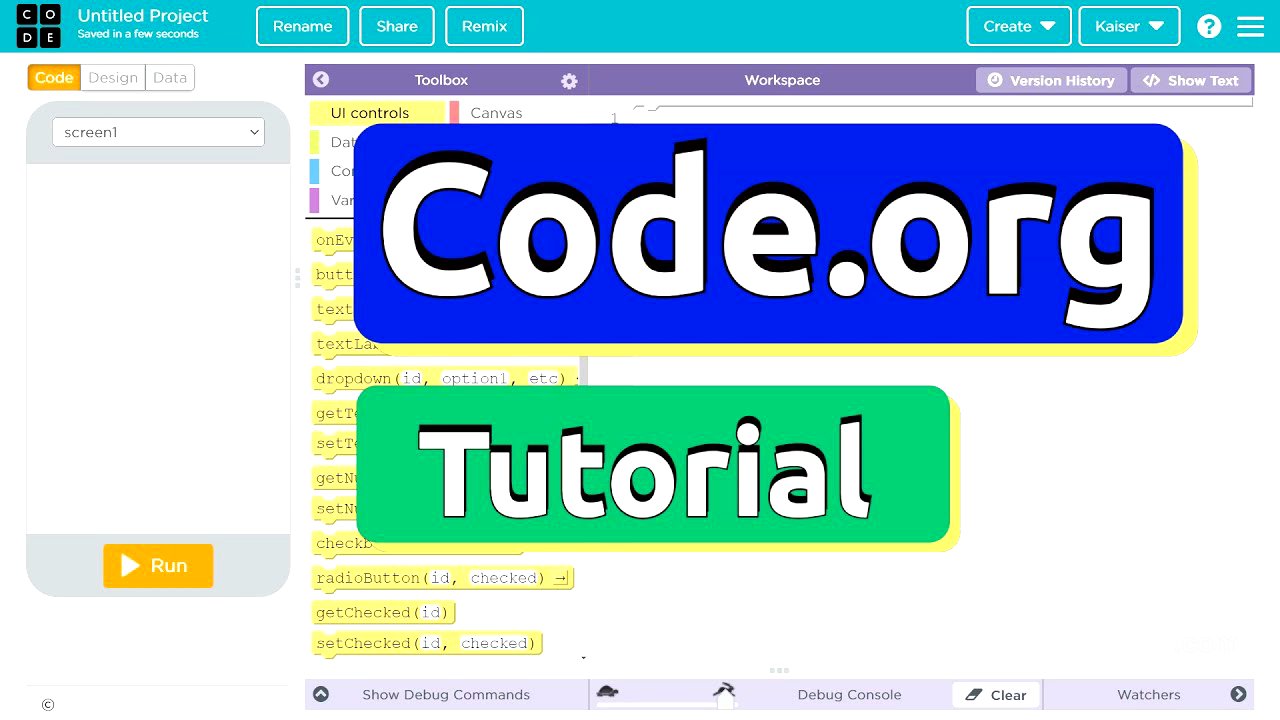
TLDR;
This video provides a step-by-step tutorial on how to create a Tic Tac Toe game using code.org's App Lab. It covers designing the game board with clickable spaces, implementing player turns with X and O, and adding functionality to switch between turns. The tutorial uses variables to keep track of the current player and image icons to represent X and O.
- Design a Tic Tac Toe game board with nine clickable spaces using images in code.org's App Lab.
- Implement player turns by using variables to keep track of whether it's X's turn or O's turn.
- Add functionality to switch between turns by creating buttons for X and O that, when clicked, update the variable that determines the current player.
Introduction [0:00]
The video introduces a tutorial on creating a Tic Tac Toe game using code.org's App Lab. The instructor emphasizes that the game is designed to be approachable and fun, suitable for students and beginners. The initial code is cleared to start from scratch, focusing on designing the game interface first.
Designing the Game Board [0:39]
The tutorial moves into the design mode of App Lab to create the Tic Tac Toe board. Nine image components are used to represent the spaces on the board. Each image is customized with a square icon to indicate it's a clickable space. The instructor sets the position and appearance of the squares, emphasizing that personal preferences can guide the design. Each square is given a unique ID (button1, button2, etc.) for easy reference in the code. A label is added for the game title "Tic Tac Toe," and its appearance is customized with a theme and larger font size.
Implementing Player Turns [4:10]
To indicate whose turn it is, two buttons labeled "X turn" and "O turn" are created. Instead of text, X and O icons are used on the buttons. The IDs for these buttons are set as "X turn button" and "O turn button," respectively.
Coding the Game Logic: Click Events and Image Updates [5:58]
The coding part begins with the "onEvent" block to detect when a player clicks on a square. The initial focus is on button1. When button1 is clicked, the image of the square changes to an X. The "setImageURL" block is used to change the image. The tutorial explains that events are interactions with the screen, such as clicks, keyboard input, or voice commands.
Using Variables to Track Player Turns [8:36]
To alternate between X and O, a variable named "icon" is introduced. This variable stores the image URL for either X or O. The initial value of the "icon" variable is set to the X icon's URL. The "setImageURL" block is modified to use the "icon" variable instead of a fixed image URL. The tutorial explains how to find the image URL by inspecting the code in text mode.
Implementing X and O Turn Buttons [12:23]
Event handlers are added for the "X turn button" and "O turn button." When the "X turn button" is clicked, the "icon" variable is set to the X icon's URL. When the "O turn button" is clicked, the "icon" variable is set to the O icon's URL. This allows players to switch between X and O turns.
Applying the Logic to All Buttons [15:22]
The same logic is applied to the remaining buttons (button3 through button9). The "onEvent" and "setImageURL" blocks are used for each button, with the "setImageURL" block referencing the "icon" variable. To speed up the process, the code for button1 and button2 is copied and pasted, then modified for the other buttons. The tutorial emphasizes the importance of correctly naming the buttons and checking the IDs in design mode.
Testing and Final Thoughts [17:27]
The game is tested to ensure that all buttons work correctly and that players can switch between X and O. The instructor encourages viewers to customize the game and add additional features, such as scorekeeping or a restart button.





![Gosh, crab can puff !😳 [Video] | Funny animal videos, Cute funny animals, Funny animals](https://wm-img.halpindev.com/p-briefread_c-10_b-10/urlb/aHR0cHM6Ly9pLnBpbmltZy5jb20vNzM2eC81OS83ZS82MS81OTdlNjEzZTg5MDIxOTJmMzQyNGRlODY0NzEzYzFjZC5qcGc=.jpg)