TLDR;
This video provides eight tips and tricks to enhance iPad usage, covering keyboard customization, guided access for privacy, accessibility shortcuts, scanning to PDF, multitasking, quick screenshots, using USB-C webcams, and pairing Bluetooth devices. It aims to reveal lesser-known features and improve productivity on iPads.
- Keyboard Hacks: Customize keyboard size, use swipe typing, and split the keyboard for easier thumb typing.
- Guided Access: Restrict access to specific apps when lending your iPad to others.
- Accessibility Shortcuts: Customize the triple tap function for quick access to features like Assistive Touch.
- Scan to PDF: Directly create PDF scans using the Files app.
- Multitasking: Use split view and slide over for efficient multitasking and drag-and-drop functionality.
- Quick Screenshots: Use swipe gestures for quick screenshots and markup tools for better annotations.
- USB-C Webcam: Connect external webcams for higher quality video.
- Pair Bluetooth Devices: Connect Bluetooth mice, keyboards, trackpads, and game controllers for enhanced control.
Intro [0:00]
The video introduces eight iPad tips and tricks, addressing the lack of detailed iPad content compared to iPhone tutorials on the channel. The presenter aims to share useful features that viewers may not know, highlighting the iPad's capabilities when used effectively.
Keyboard Hacks [0:19]
The iPad keyboard offers several customization options not available on iPhones. You can adjust the keyboard size using a pinch and push motion or by tapping and holding the button at the bottom right to select the floating keyboard option. Swipe typing is enabled when using the floating keyboard. The split keyboard feature, which divides the keyboard into left and right sides, is available on some iPad models like the iPad mini but is absent on the iPad Pro. Additionally, swiping down on a key inputs the alternative character or number displayed on that key.
Guided Access [2:06]
Guided Access restricts iPad usage to a single app, useful when lending the device. To enable it, go to Settings > Accessibility > Guided Access, and toggle the feature on. Then, open the desired app, triple-tap the top button, and configure options to allow or disallow control over features like volume buttons. Start Guided Access, and the device will be locked into the selected app, preventing access to other apps or settings. To exit, triple-tap the top button again and enter the passcode.
Triple Tap Top Button [4:08]
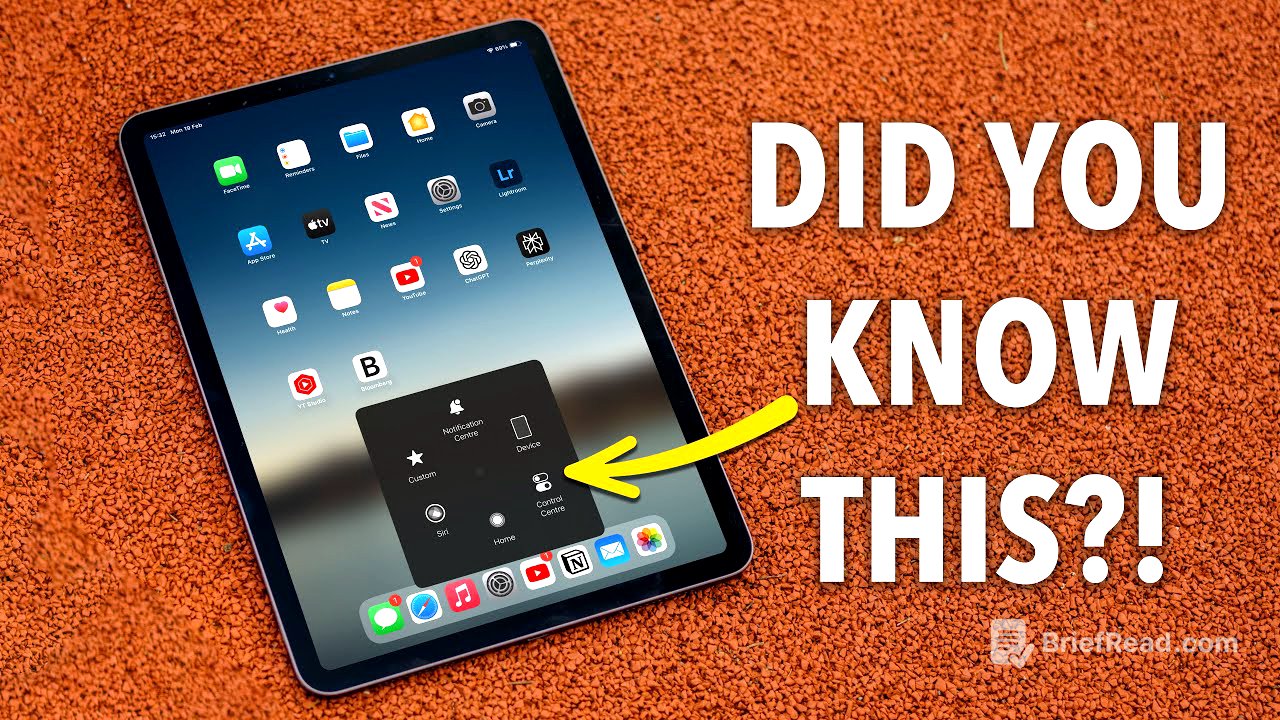
The triple tap function of the top button can be customized for quick access to various features. In Settings > Accessibility > Accessibility Shortcuts, you can select what a triple tap will activate. A useful option is Assistive Touch, which creates a home screen-like button on the screen. This button provides quick access to functions like the control center, Siri, or screenshots. The Assistive Touch menu can be customized in Settings > Accessibility > Touch > Assistive Touch > Customize Top Level Menu, allowing you to add functions like the camera or custom shortcuts.
Scan straight to PDF [7:35]
The Files app can directly create PDF scans. Open the Files app, navigate to the desired folder (iCloud Drive > Desktop for immediate Mac access), tap and hold to bring up the contextual menu, and choose "Scan Documents". The iPad's camera opens, allowing you to toggle between Auto and manual scan modes, adjust the flash, and select the document type. After capturing the scan, you can crop, rotate, and adjust the scan type. For multi-page documents, continue scanning until all pages are captured, then tap "Save". The PDF is saved in the chosen folder and can be renamed.
Multitask like a PRO! [9:30]
The iPad offers robust multitasking capabilities, including Split View. To use Split View, open the first app, tap the three dots at the top, and choose "Split View". The app shifts to one side, prompting you to select a second app. The two apps function in smaller windows, and you can resize them using the control in the middle. Drag and drop content between apps, such as images or text, enhancing productivity. Multiple views of each app can be managed via the shelf feature, allowing you to bounce between different notes or Safari pages. Alternatively, open a note in a new window for a larger workspace, accessible via the shelf at the bottom. Ensure Split View and Slide Over are enabled in Settings > Multitasking & Gestures.
Quick Screenshots & PDFs [11:56]
Enable swipe gestures for quick screenshots by going to Settings > Multitasking & Gestures and enabling "Swipe Finger from Corner". This allows you to swipe from the bottom left or right corner to capture a screenshot. When marking up screenshots, draw shapes like circles, squares, triangles, and arrows, and hold at the end to have the iPad perfect them. The highlighter tool also straightens lines when you hold after drawing. Use the selector tool to move objects around the screen. The Eraser tool offers pixel and object eraser options for precise or complete removal. When sharing a full-page screenshot, you can choose to send it as an image or a PDF document.
USB C Webcam [14:17]
iPads with USB-C inputs running iPadOS 17 can use external webcams for improved video quality. Simply plug in the USB-C webcam, and it should work without needing additional drivers or software. The quality of external webcams is generally superior to the built-in iPad webcam. Support for external webcams depends on the software; for example, Zoom rolled out support in December 2023.
Pair with a Mouse, Keyboard, Trackpad and more! [15:15]
You can pair Bluetooth devices like mice, keyboards, and trackpads with your iPad. Put the Bluetooth device in pairing mode, and on your iPad, go to Bluetooth settings to find and pair the device. Once paired, you can configure settings like scroll direction and right-click functionality in Settings > General > Trackpad & Mouse or Keyboard. You can also pair game controllers like PS4 or PS5 controllers for gaming.