TLDR;
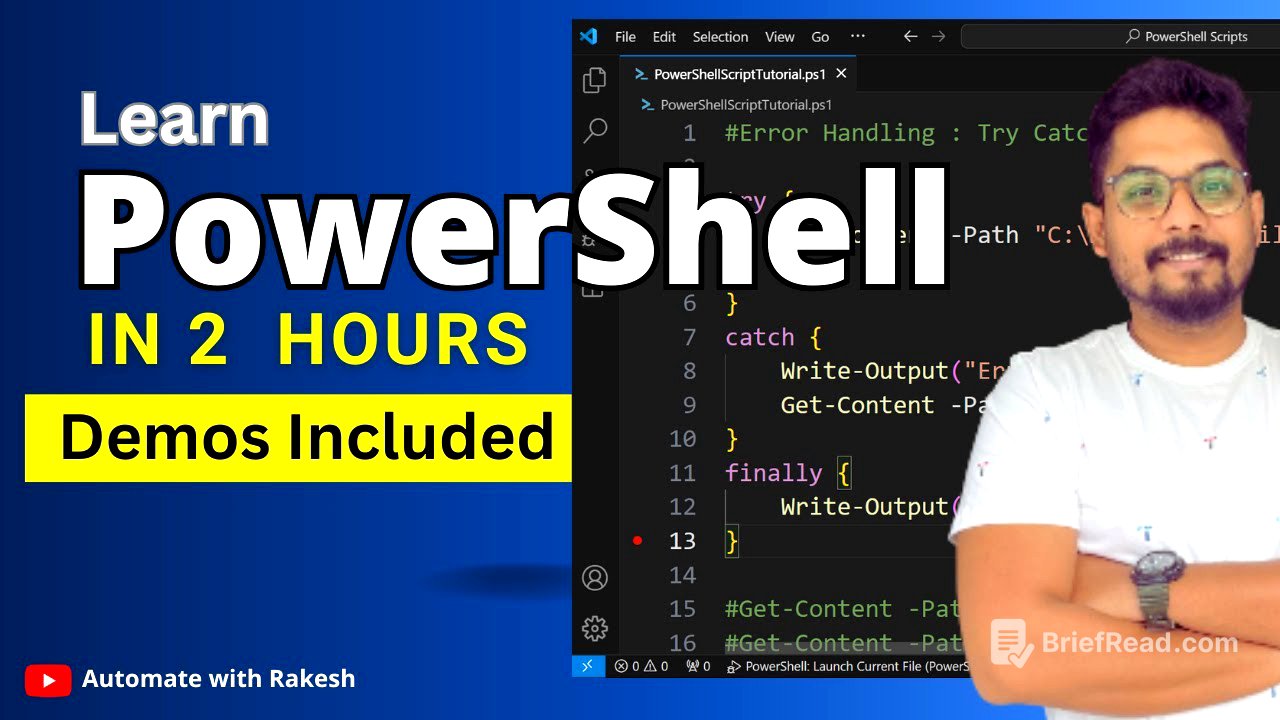
This PowerShell tutorial covers everything from checking the PowerShell version and upgrading it, to understanding its uses and setting up a coding environment with Visual Studio Code. It explains key concepts such as commandlets, variables, operators, arrays, hash tables, custom objects, and control flow statements. The tutorial also covers advanced topics like pipeline and error handling using try-catch-finally blocks.
- Checking and upgrading PowerShell version
- Setting up Visual Studio Code for PowerShell scripting
- Understanding key PowerShell concepts and syntax
- Implementing control flow and error handling
Checking PowerShell Version [0:00]
To check the current PowerShell version on a Windows computer, type "PowerShell" in the search bar and open it. Then, enter the command $PSVersionTable.PSVersion to display the version information. To update to the latest version, search for "latest PowerShell version" in a web browser and download the MSI package from the Microsoft website, ensuring to select the correct version (64-bit or 32-bit) for your operating system.
Installing the Latest PowerShell Version [1:34]
After downloading the MSI package, run the installer, accepting the default settings and location. Once the installation is complete, launch PowerShell to verify the updated version by using the $PSVersionTable.PSVersion command. The latest version will be displayed, confirming the successful upgrade.
Uses of PowerShell [3:56]
PowerShell is a task automation and configuration management framework from Microsoft. Key uses include automating administrative tasks such as managing user accounts, configuring network settings, and working with files and folders. It also supports complex scripting, remote management, cloud management, CI/CD, and data manipulation.
Setting Up Visual Studio Code for PowerShell [5:02]
PowerShell 7 does not include an Integrated Scripting Environment (ISE) due to architectural differences. Instead, Microsoft recommends using Visual Studio Code (VS Code) with the PowerShell extension. To install VS Code, download it from the official website, run the installer, and accept the default settings.
Installing the PowerShell Extension in VS Code [8:46]
After installing VS Code, install the PowerShell extension by navigating to the Extensions view (Ctrl+Shift+X) and searching for "PowerShell". Select the extension from Microsoft and click "Install". Once installed, open a folder in VS Code to store your PowerShell scripts. Create a new file with the .ps1 extension to begin scripting.
Writing and Running Your First PowerShell Script [12:10]
To write your first script, create a new .ps1 file in VS Code and enter the command Get-Date. Click the "Run" button to execute the script and view the output in the terminal. PowerShell commands, known as commandlets, follow a verb-noun structure (e.g., Get-Date, Get-Service).
Understanding the VS Code Editor [16:10]
The VS Code editor includes various panels and settings that can be customised. The left sidebar provides access to Explorer, Search, Source Control, Run and Debug, and Extensions. The terminal window displays script output. To increase the font size, go to File > Preferences > Settings, search for "font size", and adjust the value. You can also change the theme under File > Preferences > Theme > Color Theme.
Finding PowerShell Commands [20:25]
To discover available PowerShell commands, use the Get-Command commandlet. To find commands related to a specific noun, use Get-Command -Noun <noun> (e.g., Get-Command -Noun Service). Similarly, to find commands related to a verb, use Get-Command -Verb <verb> (e.g., Get-Command -Verb Install). For help on a specific commandlet, use Get-Help <commandlet> -Full.
Understanding Aliases [23:29]
Aliases are short, alternative names for commandlets (e.g., gsv for Get-Service). To view a list of all aliases, use the Get-Alias commandlet. While aliases can be convenient, using full commandlet names improves code readability, especially for beginners.
Working with Variables [25:28]
Variables in PowerShell are declared using a dollar sign ($) followed by the variable name (e.g., $myVariable). Variable names can follow camel case, Pascal case, or snake case conventions. To assign a value to a variable, use the equals sign (e.g., $myVariable = "Automate with Rakesh"). To print the value of a variable, use the dollar sign followed by the variable name (e.g., $myVariable).
Data Types, Methods and Properties [28:28]
Data types in PowerShell include strings, numbers, and Booleans. A series of characters enclosed in quotes is called a string. To determine the data type of a variable, use the GetType() method (e.g., $myVariable.GetType()). Properties are accessed using a dot (e.g., $myVariable.Length).
Operators and Boolean Variables [31:31]
Basic arithmetic operators include + (addition), - (subtraction), * (multiplication), / (division), and % (modulus). Boolean variables can be assigned the values $true or $false. Attempting to assign a value to the built-in variables $true or $false will result in an error.
Comparison Operators [34:46]
Comparison operators in PowerShell include -eq (equals), -ne (not equals), -gt (greater than), -ge (greater than or equals), -lt (less than), and -le (less than or equals). These operators are used to compare values and return a Boolean result.
Arrays in PowerShell [37:32]
An array is a data structure that can hold multiple items. Arrays are created using the @() syntax (e.g., $a = @(1, 2, 3, 4, 5)). To determine if a variable is an array, use the GetType() method. To access an element in an array, use its index (e.g., $a[0] to access the first element). The index of an array always starts from zero.
Looping Through Arrays [43:24]
To loop through an array, use the foreach construct. The syntax is foreach ($i in $array) { <commands> }. Inside the loop, the variable $i represents each element in the array.
Hash Tables (Dictionaries) [45:45]
A hash table, also known as a dictionary, is a collection of key-value pairs. Hash tables are created using the @{} syntax (e.g., $settings = @{ AppName = "AppOne"; Version = "1.0.0" }). Keys must be unique within a hash table. To access a value, use the key in square brackets (e.g., $settings["AppName"]).
Looping Through Hash Tables [52:15]
To loop through a hash table, use the foreach construct. The syntax is foreach ($i in $hashtable.Keys) { <commands> }. Inside the loop, the variable $i represents each key in the hash table.
Custom Objects [56:41]
A custom object is a way to create objects with properties and values. Custom objects are created using the New-Object PSObject -Property @{} commandlet. Properties are accessed using a dot (e.g., $person.FirstName).
List of Custom Objects [1:03:13]
A list of custom objects is an array containing multiple custom objects. To create a list of custom objects, use the @() syntax (e.g., $employees = @(New-Object PSObject -Property @{ Name = "Alice"; Age = 45 }, New-Object PSObject -Property @{ Name = "John"; Age = 25 })). To iterate through the list, use the foreach construct.
Pipeline [1:09:32]
Pipeline involves passing the output of one command as input to another command. This is achieved using the pipe symbol (|). The output of the left-hand command is represented by the $_ variable in the right-hand command.
Conditional Statements (If-Else-If-Else) [1:20:06]
Conditional statements allow you to execute different blocks of code based on certain conditions. The if, elseif, and else keywords are used to create conditional statements.
Switch Statement [1:24:20]
A switch statement provides a concise way to handle multiple conditions based on the value of a variable. The switch keyword is used to create a switch statement.
Do-While Loop [1:28:57]
A do-while loop executes a block of code at least once and then continues executing the block of code as long as a condition is true. The do and while keywords are used to create a do-while loop.
Try-Catch-Finally [1:32:33]
The try, catch, and finally blocks are used for error handling. The try block contains the code that might throw an exception. The catch block contains the code that is executed if an exception is thrown. The finally block contains the code that is always executed, regardless of whether an exception is thrown. In PowerShell, it's important to use $ErrorActionPreference = "Stop" within the try block to ensure that errors are properly caught.